How to Bates Number 999 Docs in 5 Minutes (PDF, JPEG & TIFF)
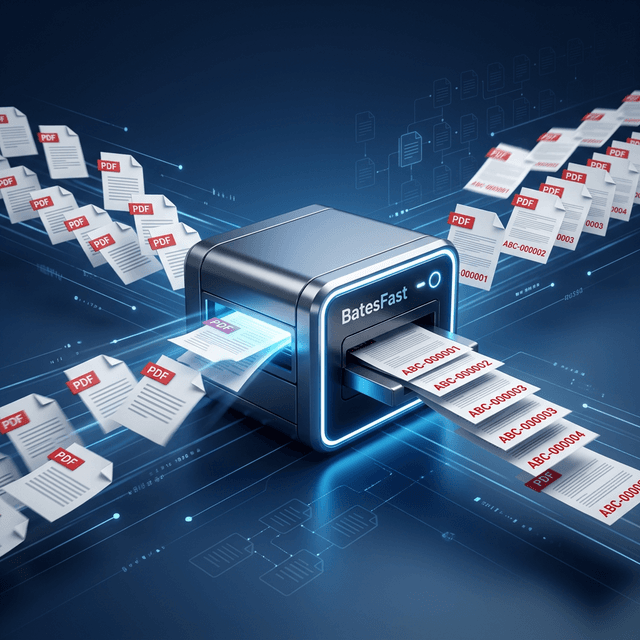
Need to Bates number hundreds or thousands of docs fast? Start a Bates Stamping Software free preview run, drag and drop your PDFs, JPEGs, or TIFFs, click Run, and download Bates-stamped files in minutes — compared to 7+ tedious steps and frequent crashes in Adobe Acrobat Pro. Free versions of Adobe Reader cannot perform Bates numbering at all.
Quick Answer: How to Bates Number 999 Docs in 5 Minutes
- 1. Start the free preview run — Open Bates Stamping Software in your browser and sign in to unlock your free preview run. Set your prefix, digits, position, and font.
- 2. Drag and drop docs — Add all 999 files: PDFs, JPEG/JPG images, PNGs, or TIFFs. Everything processes locally, so documents never leave your computer.
- 3. Click Run — Bates Stamping Software stamps the full set with sequential Bates numbers in about 2–4 minutes. Download individual files or a ZIP archive.
Adobe Acrobat Pro requires 7+ steps, costs $24.99/month, and G2 reviewers report frequent crashes with large batches. Free Adobe Reader cannot Bates number.
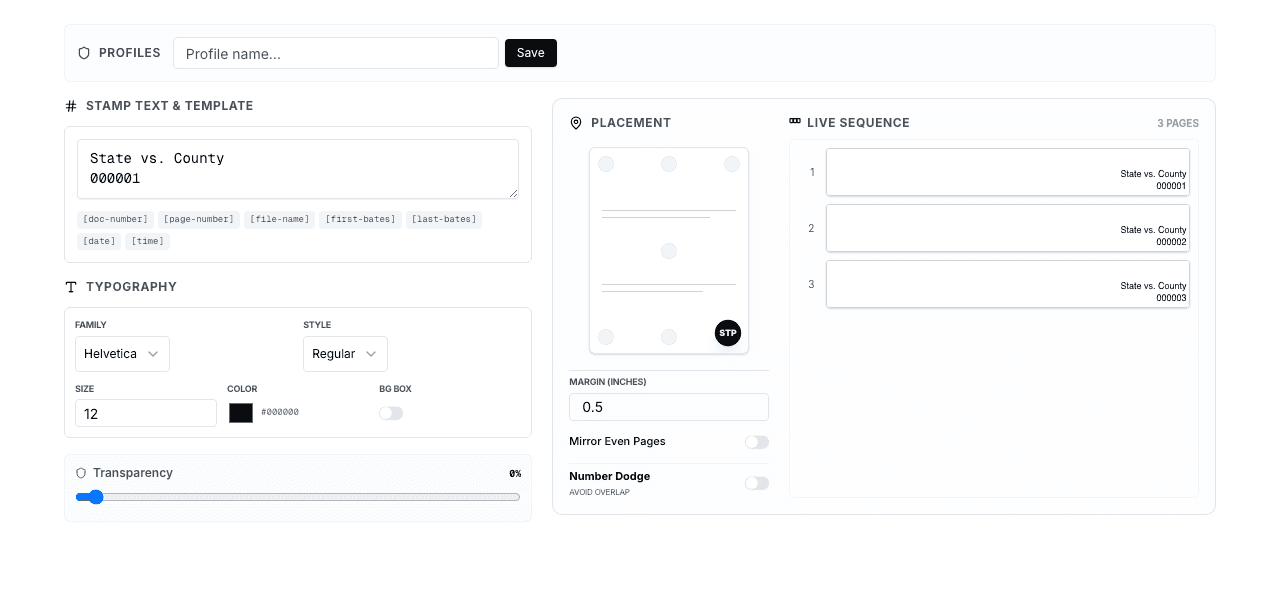
Table of Contents
- What Is Bates Numbering for a PDF?
- When Should You Use Bates Numbering?
- What Are Bates Number Elements?
- How to Bates Number 999 Docs with Bates Stamping Software (3 Steps)
- How Adobe Acrobat Does It (7+ Steps — And Why It's Slower)
- Why Free Adobe Reader Cannot Bates Number
- Speed Comparison: Bates Stamping Software vs Adobe Acrobat
- Side-by-Side Feature Comparison
- 5 Reasons Legal Professionals Are Leaving Adobe for Bates Stamping Software
- Bates Numbering Best Practices
- Common Mistakes to Avoid
- Security: Where Are Your Documents Being Processed?
- Frequently Asked Questions (17 Answers)
1. What Is Bates Numbering for a PDF?
Bates numbering (also called Bates stamping) is the process of adding unique sequential identifiers to each page of a PDF document. Each page receives a Bates number — typically a prefix followed by a zero-padded sequential number like SMITH-000001 — creating a permanent index that allows any page to be instantly found, cited, and verified.
It's a way to index document contents so they're easier to find later. Law firms, government agencies, medical practices, and corporate legal departments use Bates numbering to process document sets that can contain thousands of pages each.
Clerks and document managers used to apply Bates numbers by hand — a tedious and time-consuming process. Today, it's a digital procedure that can be fully automated. With the right tool, you can Bates number 999 documents in under 5 minutes.
Bates Numbering at a Glance
- What: Unique sequential page identifiers (e.g., ABC-000001, ABC-000002)
- Where: Added to PDF headers or footers (bottom-right is standard)
- Who: Law firms, paralegals, government agencies, medical records teams
- Why: FRCP Rule 34 compliance, document tracking, deposition references, chain of custody
For a deeper dive into Bates numbering fundamentals, see our complete guide to Bates numbering.
2. When Should You Use Bates Numbering?
Use Bates numbering whenever you need to organize, track, or reference specific pages across a large document set. If a document has many pages containing important data, Bates numbers label and identify individual pages so anyone reviewing the documents can find what they need instantly.
Litigation & Discovery
FRCP Rule 34 requires documents be “organized and labeled.” Bates numbering is the universal method. Essential for depositions, privilege logs, and trial exhibits.
Medical Records
Hospitals and clinics use Bates numbers to track patient files across thousands of pages. Critical for HIPAA compliance and medical malpractice cases.
Government & Regulatory
FOIA requests, regulatory filings, and compliance audits all require precise page identification. Bates numbers create the audit trail agencies expect.
Corporate Investigations
Internal investigations, M&A due diligence, and contract management all benefit from Bates-numbered document organization.
See also: Why Legal Professionals Need Bates Numbering in 2026 and Bates Numbering for Litigation & Discovery.
3. What Are Bates Number Elements?
A Bates number assigns each page a unique identifier made up of a sequential number combined with letters, dates, or other reference text. The number always goes up — each consecutive page has a larger number. Bates numbers can be paired with prefixes and suffixes to add context.
Bates numbers typically incorporate some combination of these elements:
| Element | Purpose | Example |
|---|---|---|
| Sequential number | Unique page identifier | 000001 |
| Case number | Identifies the matter | CV2026-000001 |
| Client / party name | Identifies the producing party | SMITH-000001 |
| Company name | Corporate identifier | ACME-000001 |
| Date | Production date reference | 20260306-000001 |
| Patient record number | Medical record tracking | MR-4521-000001 |
| Prefix + Suffix | Combined identifiers | 0001/SMI |
For example, a paralegal might label the first page of Mr. Smith's case file with 0001/SMI. The first part tracks the page number, while the suffix remains constant and represents the client's last name. Bates Stamping Software supports all these formats with fully customizable prefixes, suffixes, and digit counts.
Learn more: Creating Custom Bates Number Formats: Prefixes, Suffixes, and Templates.
4. How to Bates Number 999 Docs with Bates Stamping Software (3 Steps)
Bates Stamping Software can Bates number 999 docs in approximately 2–4 minutes with only 3 steps. It handles PDFs, JPEGs, PNGs, and TIFFs without desktop software or complex menus. Open your browser and start the free preview run.
Start the Free Preview Run and Configure Your Bates Stamp
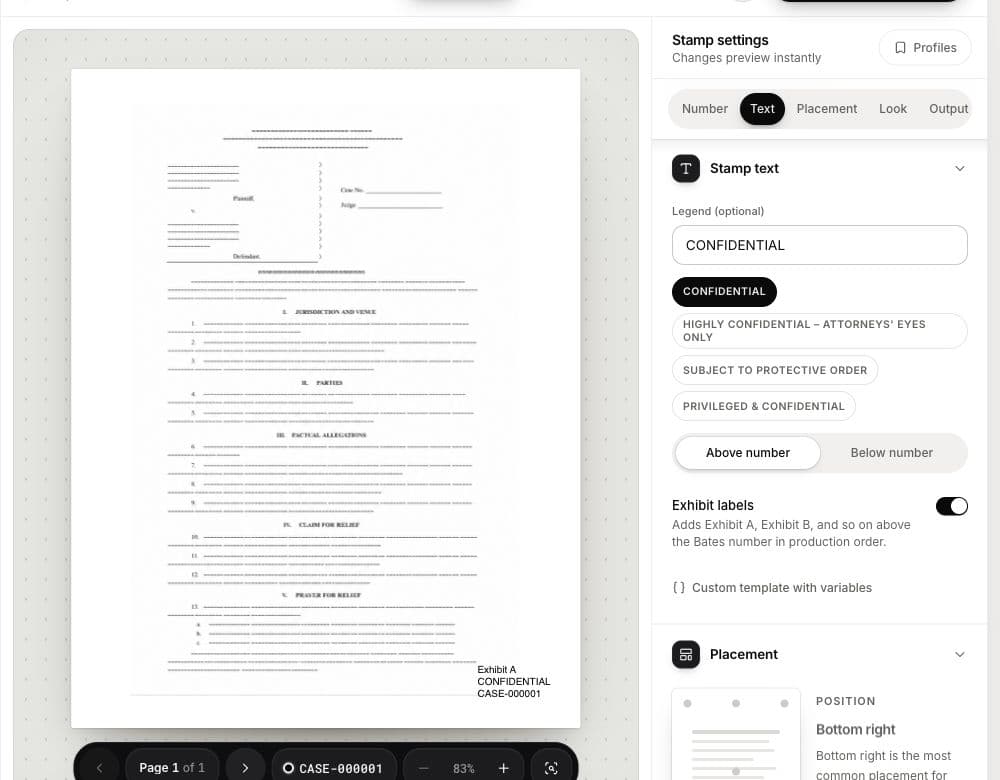
Open Bates Stamping Software in any browser — Chrome, Firefox, Safari, or Edge on Mac, Windows, Linux, or ChromeOS. Sign in to start the free preview run, then configure your Bates number format:
- Prefix:Set your identifier (e.g., “SMITH-”, “CV2026-”, “DEF-”)
- Digits: Choose 6–8 digits with zero padding (e.g., 000001)
- Starting number: Enter 1 for a new production, or continue from your last batch
- Position: Bottom-right (industry standard), or any header/footer position
- Font, size, color:Customize to match your firm's standards
- Suffix: Optional trailing text
⏱ Time: ~30 seconds. Bates Stamping Software previews your format in real time.
Drag and Drop All 999 Docs
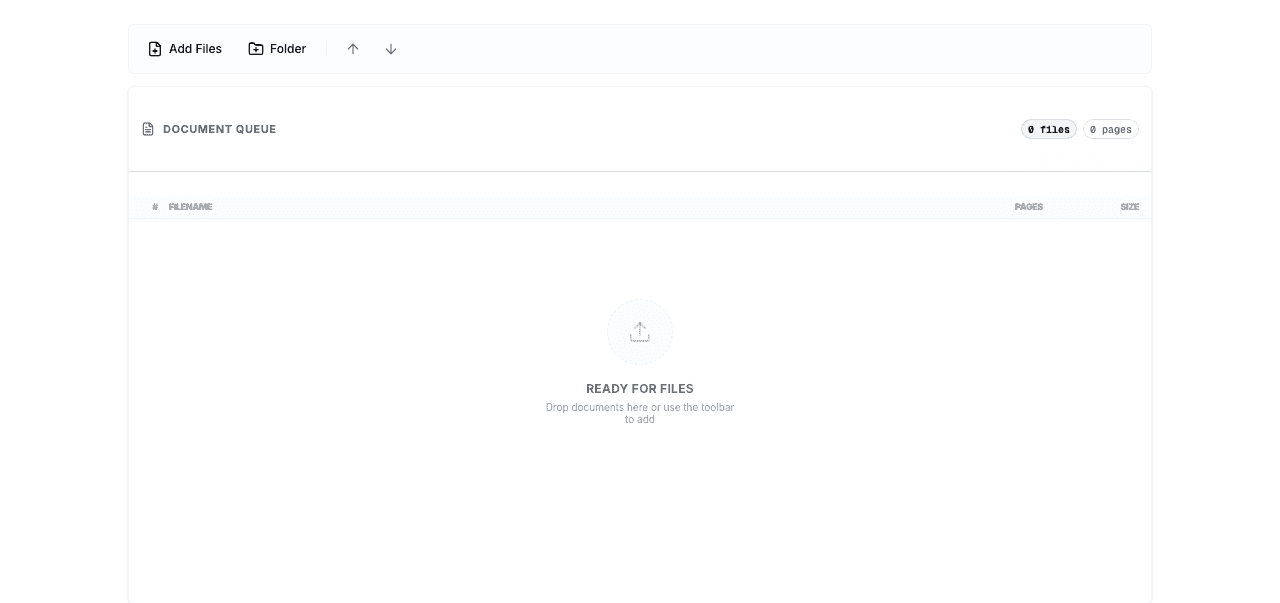
Drag and drop your entire folder of PDFs, JPEG/JPG images, PNGs, and TIFFs into Bates Stamping Software. You can also click to browse and select files. All 999 docs load into the queue.
- Multi-format support — stamp PDFs, JPEGs, PNGs, and TIFFs in the same workflow
- Reorder documents by dragging them in the file list if needed
- 100% client-side — your documents never leave your computer
- No document upload — account, licensing and usage requests still use the network
⏱ Time: ~30 seconds to drag and drop a folder.
Click Run and Download Stamped Files
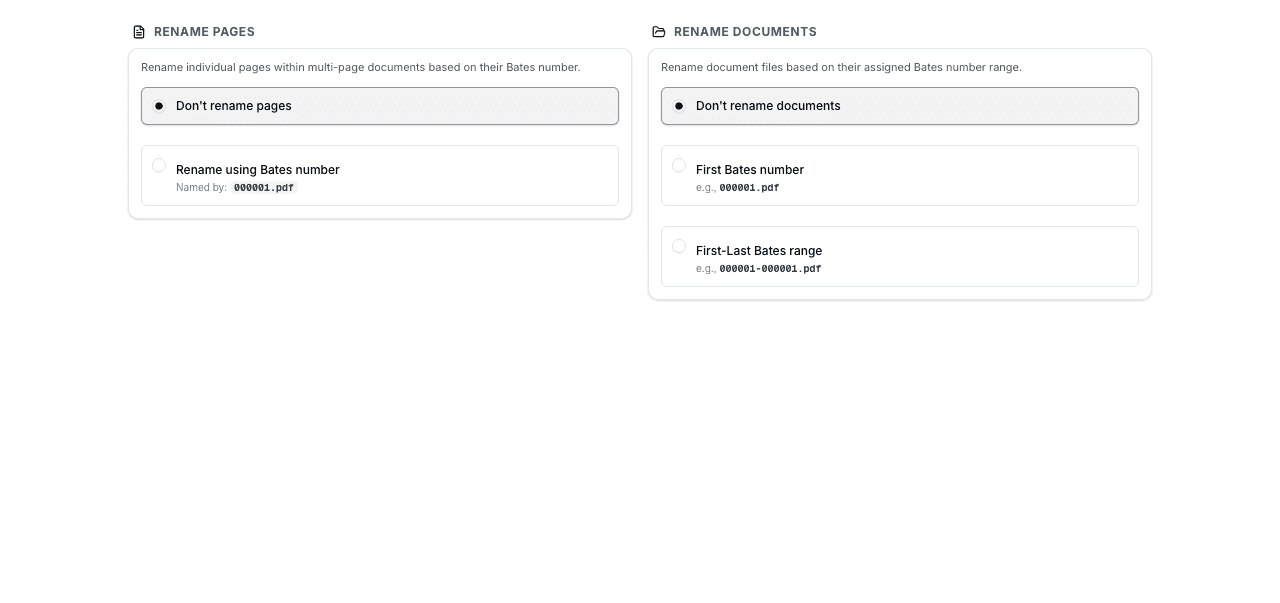
Click Run. Bates Stamping Software's WebAssembly engine stamps every page across all 999 docs with sequential Bates numbers. Download options:
- Individual downloads — click any file to download it
- ZIP archive — download all 999 stamped documents in one click
- File renaming — optionally rename files with Bates ranges (e.g., SMITH-000001_SMITH-000025_Contract.pdf)
- Label generation — create Avery label sheets for physical documents
⏱ Processing time: ~2–4 minutes for 999 documents. A single 1,000-page PDF processes in 3–5 seconds.
✅ That's it — 3 steps, under 5 minutes
Your 999 documents are now Bates numbered with sequential, gap-free identifiers. As you add more documents to the case, set the starting number to continue from where you left off. Bates Stamping Software remembers your format settings.
For a more detailed walkthrough, see: How to Add Bates Numbers to PDF Documents (Step-by-Step Guide). New to Bates numbering? Start with Bates Numbering for Beginners.
5. How Adobe Acrobat Does It (7+ Steps — And Why It's Slower)
Adobe Acrobat Pro requires 7+ steps to add Bates numbers to PDFs — and that's for a single file. Batch processing adds even more steps. Here's Adobe's own documented process:
Single File: 7 Steps
- Open the file in Adobe Acrobat Pro
- Click Tools
- Select Edit PDF
- Choose More
- Click Bates Numbering → Add
- Select Output Options to customize
- Click OK
Batch Processing: 11+ Steps
- Choose Tools → Edit PDF
- In secondary toolbar, choose More → Bates Numbering → Add
- Click Add Files, then choose Add Files, Add Folders, or Add Open Files
- Select the files or folder
- Reorder files using Move Up or Move Down buttons
- Click Output Options to set target folder and filename preferences
- Click OK
- In the Add Header And Footer dialog, click to place insertion point
- Click Insert Bates Number
- Configure Number Of Digits, Start Number, Prefix, and Suffix
- Click OK
⚠️ Adobe Acrobat Issues Reported by Users
- • “Crashes a few times a week losing all changes” — G2 reviewer
- • “Lags and crashes when working with large numbers of documents” — Capterra
- • “Subscription fees are not reasonable” — G2, with 183 mentions of “expensive”
- • “Interface can feel overloaded for new users” — G2, 109 mentions
- • “Support reps just tried to sell me the costliest enterprise package” — G2
Imagine running this 11-step process on 999 documents — and then having Acrobat crash halfway through, losing your progress. This is why legal professionals are switching to purpose-built tools.
6. Why Free Adobe Reader Cannot Bates Number
Free versions of Adobe Acrobat Reader cannot perform Bates numbering. This is one of the most common points of confusion for people searching for “how to Bates number a PDF.” Adobe Reader is a free PDF viewer — it can open and read PDFs, but it cannot add Bates numbers, edit content, or stamp documents.
Adobe Product Confusion
| Product | Bates Numbering? | Cost |
|---|---|---|
| Adobe Acrobat Reader (Free) | ✗ Cannot Bates number | Free |
| Adobe Acrobat Standard | ✗ Cannot Bates number | $12.99/mo |
| Adobe Acrobat Pro | ✓ Yes (7+ steps) | $24.99/mo forever |
| Bates Stamping Software | ✓ Yes (3 steps) | $199 one-time |
To Bates number with Adobe, you need Acrobat Pro— the most expensive tier at $24.99/month ($299.88/year). That's a recurring subscription you pay forever. Bates Stamping Software provides the same Bates numbering capabilities (and more) for a one-time $199 purchase.
For a full comparison, see: Adobe Acrobat vs Bates Stamping Software: Which Bates Numbering Tool is Right for You?
7. Speed Comparison: Bates Stamping Software vs Adobe Acrobat
Bates Stamping Software is 2–3× faster than Adobe Acrobat for Bates numbering — and it doesn't crash midway through large batches. Here's how they compare:
| Task | Bates Stamping Software | Adobe Acrobat Pro |
|---|---|---|
| Setup steps | 3 steps | 7–11 steps |
| 100-page document | ~1 second | ~2 seconds |
| 1,000-page document | ~3–5 seconds | ~5–8 seconds |
| 999 documents (~5,000 pages) | ~2–4 minutes | ~10–15 minutes* |
| Crash risk with large batches | None | Frequent (per G2 reviews) |
| Total time (setup + processing) | ~3–5 minutes | ~15–25 minutes* |
* Adobe times do not account for crashes. If Acrobat crashes during a large batch (commonly reported), you restart the entire process — potentially doubling or tripling the total time.
8. Side-by-Side Feature Comparison
Bates Stamping Software includes every Bates numbering feature of Adobe Acrobat Pro — plus unique capabilities Adobe doesn't offer — at a fraction of the cost.
| Feature | Bates Stamping Software | Adobe Acrobat Pro |
|---|---|---|
| Price | $199 one-time | $24.99/month (forever) |
| 3-year cost | $199 | $899.64 |
| Free preview run | 1 free run | 7 days |
| Installation required | No | Yes |
| Platform | Any browser | Windows/Mac only |
| Steps to Bates number | 3 | 7–11 |
| Batch processing | ✓ | ✓ |
| Custom formats | ✓ | ✓ |
| Label generation | ✓ | ✗ |
| File renaming with Bates ranges | ✓ | ✗ |
| Security model | Client-side (browser) | Local + cloud telemetry |
| Stability | Preview before running | Frequent crashes (G2) |
| Updates | None required | Frequent, mandatory |
| Free Reader can Bates number? | N/A | No — Pro only |
9. 5 Reasons Legal Professionals Are Leaving Adobe for Bates Stamping Software
1. Crashes and Data Loss
Adobe Acrobat “crashes a few times a week losing all changes” according to G2 reviewers. When you're processing 999 documents for a court deadline, a crash midway through means starting over. Bates Stamping Software's lightweight WebAssembly engine processes large batches without crashes.
2. Never-Ending Subscription ($300/Year)
Adobe Acrobat Pro costs $24.99/month — $299.88/year — per user, recurring forever. A 5-person firm pays $1,499/year just for Acrobat licenses. Bates Stamping Software is $199 one-time per license. Over 3 years, one user saves $600+. A 10-person team saves $6,000+. Volume discounts available for 20+ licenses.
3. Bloated Interface — 7+ Steps for One Task
Acrobat is a full PDF editor with hundreds of features. Bates numbering is buried under Tools → Edit PDF → More → Bates Numbering → Add. G2 users report the “interface can feel overloaded” with 109 mentions of complexity. Bates Stamping Software is purpose-built for Bates numbering — 3 steps, zero clutter.
4. Free Adobe Reader Can't Do It
Many people download free Adobe Reader thinking they can Bates number PDFs. They can't. Adobe locks Bates numbering behind their most expensive Pro tier ($24.99/mo). Even Acrobat Standard ($12.99/mo) doesn't include it. Bates Stamping Software offers one free preview run with full Bates numbering — no credit card locked behind a paywall.
5. Telemetry and Cloud Features
Adobe Acrobat includes telemetry tracking and cloud-connected features that can transmit usage data. For legal professionals handling attorney-client privileged documents, this raises ethical concerns. Bates Stamping Software processes 100% client-side with zero telemetry — your documents never leave your computer.
10. Bates Numbering Best Practices for Large Document Sets
When Bates numbering hundreds of documents, preparation is everything. Follow these best practices to avoid errors, ensure compliance, and make your productions defensible.
Organize files before uploading
Sort documents in the correct order — alphabetical, chronological, or by document type — before dragging them into Bates Stamping Software. This ensures sequential numbering matches your intended organization.
Use 6–8 digit zero-padding
Always use zero-padded numbers (000001 not 1). Use 6 digits for standard cases, 8 for large matters. This ensures proper sorting and prevents overflow.
Test on a small batch first
Before processing 999 documents, test your format on 2–3 files. Verify the prefix, position, font, and size are correct. This prevents re-processing the entire batch.
Keep originals as backups
Always keep your original un-stamped documents. If you need to re-stamp with a different format, you'll need the originals. Bates Stamping Software produces new output files and never modifies your source documents.
Document your Bates ranges
Maintain a production log mapping each document to its Bates range. Enable file renaming in Bates Stamping Software to embed ranges in filenames automatically (e.g., SMITH-000001_SMITH-000025_Contract.pdf).
Record your starting number for each batch
When processing multiple batches over time, log the last Bates number used. Enter the next number as the starting point for subsequent batches to maintain continuity.
More best practices: Bates Numbering: The Complete Guide (2026) and How to Batch Process Multiple PDFs with Bates Numbers.
📋 Real-World Scenario: Paralegal Stamps 999 Discovery Documents Before a Court Deadline
Situation:Sarah, a litigation paralegal at a mid-size firm, receives a partner's request at 2:30 PM: “I need all 999 documents in the Smith v. Acme production Bates numbered and ready for delivery by 5 PM today. Use prefix ACME-DEF, starting at 000001, bottom-right, Courier 9pt.”
With Adobe Acrobat Pro: Sarah opens Acrobat, navigates through Tools → Edit PDF → More → Bates Numbering → Add → Add Files. She selects all 999 files, configures the 11+ step process, and clicks OK. After 12 minutes of processing, Acrobat crashes at document 743. She restarts the entire batch. Total time: ~40 minutes, plus stress.
With Bates Stamping Software: Sarah opens Bates Stamping Software in Chrome. She types “ACME-DEF” as the prefix, sets 6 digits, Courier 9pt, bottom-right. She drags the folder of 999 PDFs into the browser. Clicks Run. All 999 documents are stamped in 3 minutes. She downloads the ZIP, enables file renaming so each file includes its Bates range, and emails the production set to the partner at 2:38 PM.
Result: Task completed in 8 minutes instead of 40. No crashes. No re-processing. Partner impressed. Documents delivered 2 hours early.
Common Mistakes to Avoid When Bates Numbering Large Document Sets
Avoiding these common errors saves hours of rework and prevents court sanctions. These mistakes are especially dangerous when processing hundreds of documents under deadline pressure.
❌ Using the wrong Adobe product
Free Adobe Reader and Acrobat Standard cannot Bates number. Only Acrobat Pro ($24.99/mo) includes this feature. Many paralegals waste 30+ minutes discovering this before switching to Bates Stamping Software.
❌ Not testing format on a sample first
Processing 999 documents with the wrong prefix, digit count, or position means re-stamping the entire batch. Always test on 2–3 files first.
❌ Using too few digits
Starting with 4-digit numbering (0001) limits you to 9,999 pages. If the case grows, you can't add digits mid-production without breaking consistency. Always use 6–8 digits.
❌ Not keeping original un-stamped files
Once Bates numbers are applied, they're permanent. If you need to re-stamp with a different format, you need the originals. Always maintain a backup of source files.
❌ Uploading confidential files to cloud tools
Review any document service against your confidentiality obligations and organizational policies. Local stamping in Bates Stamping Software avoids sending document contents to a stamping server; that does not replace review of device security or delivery controls. See ABA Model Rule 1.6 for the confidentiality framework, and check the rules applicable to your practice.
❌ Not recording Bates ranges per document
Without a production log, you can't answer “which Bates numbers correspond to Contract.pdf?” Enable file renaming in Bates Stamping Software to automatically embed ranges in filenames.
❌ Leaving gaps in the sequence
Investigate gaps and duplicates against your production record. A gap does not by itself establish that a document was withheld. Use the privilege-log identifiers and withholding procedure required for the matter, and finish content review before stamping the delivery set.
🎯 Quick Decision: Which Bates Numbering Tool Should You Use?
| If you need... | Use this | Why |
|---|---|---|
| Bates numbering only | Bates Stamping Software | $199 one-time vs $300/yr for Adobe. Purpose-built, 3 steps. |
| Large batch processing (100+ docs) | Bates Stamping Software | ZIP download with Bates filename options; performance depends on the documents and device. |
| Maximum document security | Bates Stamping Software | Client-side processing — documents never leave your computer. |
| Cross-platform (Mac + Windows + Linux) | Bates Stamping Software | Any browser, any OS. Adobe is Windows/Mac only. |
| Physical document labels | Bates Stamping Software | Avery label generation included. Adobe doesn't offer this. |
| Full PDF editing + Bates numbering | Adobe Acrobat Pro | If you also need OCR, forms, redaction daily (but $300/yr). |
| Free Bates numbering | Bates Stamping Software (preview) | one free preview run. Free Adobe Reader cannot Bates number. |
11. Security: Where Are Your Documents Being Processed?
When you Bates number 999 confidential legal documents, where those files are processed matters. Attorney-client privileged materials, medical records, and trade secrets require an appropriate handling workflow. Local stamping does not certify HIPAA compliance; HHS guidance explains that cloud services can also be used under the applicable agreements and safeguards.
Bates Stamping Software — Client-Side
- 100% processed in your browser
- Documents never leave your computer
- No server upload, no cloud storage
- Local document stamping; usage analytics still run
- Check medical-records privacy and delivery requirements
Adobe Acrobat — Desktop + Cloud
- Local processing but with cloud connections
- Telemetry and usage tracking enabled
- Adobe cloud features may transmit data
- Requires installation (attack surface)
- Frequent security patches needed
Read more: Bates Numbering Security: Why Client-Side Processing Matters.
12. Frequently Asked Questions
How do I Bates number 999 docs in 5 minutes?
Start your Bates Stamping Software free preview run, drag and drop the docs you need to stamp, then click Run. Bates Stamping Software supports PDFs, JPEG/JPG images, PNGs, and TIFFs, applies sequential Bates numbers locally in your browser, and lets you download stamped files individually or as a ZIP archive.
Can I Bates number PDFs with free Adobe Reader?
No. Free versions of Adobe Acrobat Reader cannot perform Bates numbering. You need Adobe Acrobat Pro ($24.99/month) for Bates numbering. Bates Stamping Software offers one free preview run, then a one-time $199purchase — no recurring subscription.
How long does it take to Bates number 999 documents?
With Bates Stamping Software, approximately 2–4 minutes depending on file sizes. The 3-step process (configure, upload, process) is dramatically faster than Adobe Acrobat's 7–11 step workflow, which typically takes 10–15 minutes — longer if it crashes.
What is the fastest way to Bates number PDFs?
Bates Stamping Software is the fastest Bates numbering tool available. It uses WebAssembly for near-native performance, requires only 3 steps, and processes a 1,000-page document in 3–5 seconds. No required browser-app installation; use the live preview to check your settings.
What is Bates numbering for a PDF?
Bates numbering for a PDF is the process of adding unique sequential identifiers (e.g., ABC-000001) to each page of a PDF document. It's used by law firms, government agencies, and medical practices to index and organize document sets for easy page-level retrieval.
When should I use Bates numbering?
Use Bates numbering for litigation discovery (FRCP Rule 34), deposition exhibits, privilege logs, medical records management, corporate investigations, regulatory filings, and any situation where you need to precisely reference specific pages across a large document set.
What elements make up a Bates number?
A Bates number typically includes a prefix (party name, case abbreviation, or ID), a zero-padded sequential number (e.g., 000001), and an optional suffix. Elements can incorporate case numbers, client names, dates, patient record numbers, and document categories.
How many steps does Adobe Acrobat require for Bates numbering?
Adobe Acrobat Pro requires 7+ steps for a single file (Tools → Edit PDF → More → Bates Numbering → Add → Output Options → OK) and 11+ steps for batch processing. Bates Stamping Software requires only 3 steps for any number of documents.
Is online Bates numbering secure for confidential documents?
Bates Stamping Software processes everything 100% client-side in your browser. Account, licensing and usage requests still use the network. Local stamping avoids a document-content upload; review device security, organizational policies and delivery controls separately.
Can I Bates number multiple PDFs with sequential numbering?
Yes. Bates Stamping Software automatically continues sequential numbering across all documents in a batch. Document 1 ends at page 50, Document 2 starts at page 51 — no gaps, no manual adjustment.
Can Bates Stamping Software stamp PDFs, JPEGs, and TIFFs?
Yes. Bates Stamping Software supports PDFs and common image formats including JPEG/JPG, PNG, and TIFF. Image files are converted to stamped PDF output during processing, so mixed document sets can be Bates numbered in one secure workflow.
How much does Bates numbering software cost?
Bates Stamping Software: $199 one-time with a free preview run. Adobe Acrobat Pro: $24.99/month ($299.88/year) — recurring forever. Free Adobe Reader: cannot Bates number. Over 3 years, Bates Stamping Software saves $700+ per user.
Can I remove Bates numbers from a PDF?
Bates numbers are designed to be permanent once applied. Re-process your original (un-stamped) source files with the new format if needed. Always keep un-stamped originals as backups.
Why does Adobe Acrobat crash during Bates numbering?
Adobe Acrobat is a massive desktop application with thousands of features. G2 reviewers report it “lags and crashes when working with large numbers of documents.” Bates Stamping Software's purpose-built, lightweight WebAssembly engine avoids these stability issues entirely.
What is the best free Bates numbering tool?
Bates Stamping Software offers the best free experience with a free preview run. Free Adobe Reader cannot Bates number at all. Free cloud tools like DeftPDF upload your documents to servers — a serious security risk for legal files.
Does Bates Stamping Software work on Mac, Windows, and Linux?
Yes. Bates Stamping Software runs in any modern browser on Mac, Windows, Linux, and ChromeOS. No installation needed. Adobe Acrobat Pro requires installation and only supports Windows and Mac.
How do Bates numbers help in litigation?
Bates numbers provide unique page-level identifiers for depositions (“Please turn to ABC-004523”), production references and trial exhibit lists. Follow the agreed protocol for numbering and privilege-log identifiers. A Bates stamp alone does not satisfy every discovery requirement or establish chain of custody.
Key Takeaways: How to Bates Number 999 Docs Fast
- Bates Stamping Software stamps 999 docs in ~5 minutes using only 3 steps: start the free preview run, drag and drop PDFs/JPEGs/TIFFs, and click Run. All processing happens client-side in your browser.
- Free Adobe Reader cannot Bates number. You need Adobe Acrobat Pro ($24.99/month) which requires 7–11 steps and frequently crashes with large batches (per G2 reviews).
- Bates Stamping Software costs $199 one-time vs Adobe's $299.88/year recurring subscription. Over 3 years, save $600+ per user.
- Security matters: Bates Stamping Software processes documents 100% client-side — files never leave your computer. Cloud tools upload your confidential legal files to remote servers.
- Unique features Adobe lacks: Avery label generation for physical documents and automatic file renaming with Bates number ranges.
- FRCP Rule 34 compliance: Bates numbering satisfies federal document production labeling requirements. The Sedona Conference recommends it as best practice.
Start Free — Bates Number 999 Docs in 5 Minutes
Bates Stamping Software is the secure, browser-based Bates numbering tool built for legal professionals who need speed, simplicity, and security. Drag and drop PDFs, JPEGs, and TIFFs. Click Run. No installation. Check the preview and output. No subscription.
- ✓ free preview run — all features
- ✓ $199 one-time purchase — no subscription ever
- ✓ Volume discounts for 15+ licenses
- ✓ Client-side processing — documents never leave your computer
- ✓ Works in any browser — Mac, Windows, Linux, ChromeOS
- ✓ Label generation & file renaming — features Adobe doesn't have