Label Guide
Avery 5267 Bates Labels: Print 80 Sequential Numbers per Sheet
Create compact Bates labels with the Avery 5267 layout, check 5167 and 8167 compatibility, and plan rows, columns and print alignment.
By Bates Stamping Software · · 6 min read
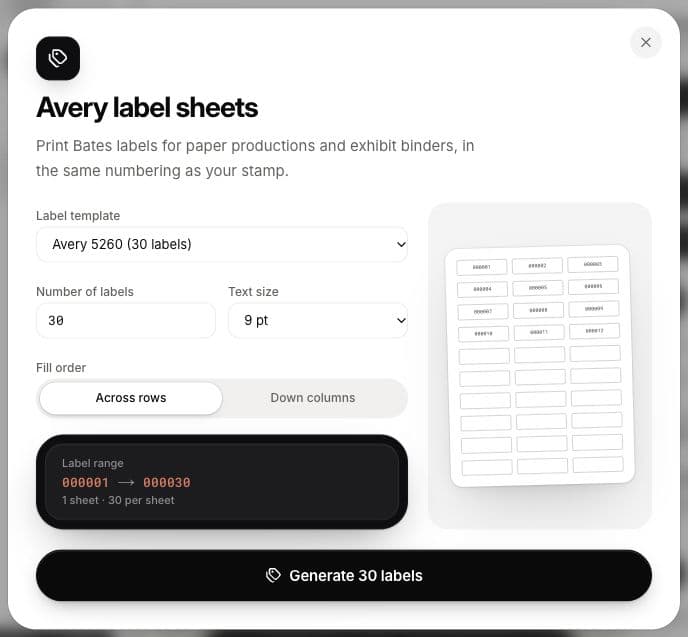
Avery 5267 is an 80-label US Letter layout suited to short sequential identifiers. Choose Avery 5267 (80 labels) in Bates Stamping Software to generate a numbered PDF sheet. Avery’s official 5267 page also lists compatible 5167, 8167 and other stock, and provides blank templates for other applications.
Know the space available
Each label measures ½ inch high by 1¾ inches wide, with four columns and twenty rows. That is useful for a compact Bates number on a paper page or a small reference sticker. A long case name, multiple legends or a paragraph of text may not fit legibly. Keep the identifier concise and inspect the saved PDF.
The 5267 geometry is different from the 30-label 5260 family. If you need more room for a descriptive label, use the 5160/5260/8160 guide. Match the sheet dimensions and the printer-compatible stock rather than selecting whichever template has the right brand name.
Prepare a compact Bates sequence
- In the app, set a starting identifier such as
CASE-000001and use the Bates stamp template. - Open Avery labels from the sidebar and select 5267. Choose the label count; no document upload is needed for a standalone label run.
- Choose a text size that fits. The dialog offers 7 through 14 point choices; smaller is not always more readable.
- Select the fill direction and compare the displayed range with your intended physical records.
- Generate and save the PDF after reviewing the settings. Google sign-in is required; label generation uses the free production if it is available.
Worked example: 185 numbered pages
A fictional paper set has 185 pages, beginning at CASE-000001. It ends at CASE-000185 and requires three 80-label sheets. The first two contain 80 labels each; the third contains 25. The next batch begins at CASE-000186 if the same sequence continues.
| Sheet | Range | Filled positions |
|---|---|---|
| 1 | CASE-000001–000080 | 80 |
| 2 | CASE-000081–000160 | 80 |
| 3 | CASE-000161–000185 | 25 |
Across rows puts identifiers 1, 2, 3 and 4 across the top of the first sheet. Down columns puts 1 through 20 in the first column and 21 at the top of the second. This changes where a number is printed, not the run’s first and last identifiers. Check the chosen direction before peeling labels.
A label number and an exhibit letter serve different purposes
A page-level Bates identifier can locate one page across a large set. An exhibit identifier groups a document or item for reference. Decide which you need before numbering: applying one label to each folder is different from labeling each page.
Bates Stamping Software can add lettered or numbered exhibit labels to PDFs in document order, but that automatic sequence does not carry into Avery sheets. If your hearing instructions call for specific sticker wording, colors, numbering or placement, use a label design that meets those instructions. Bates Stamping Software does not supply preprinted court stickers or determine filing requirements. See PDF exhibit labels for the separate digital workflow.
Print at the intended size
Use Letter paper and Actual size or 100% in the print dialog. Print a plain-paper proof and compare the first and last rows against the label stock. Avery’s printing instructions cover appropriate feed and media settings.
For consistent offsets, check your printer and sheet alignment. For increasing drift, check the paper size and scaling. Bates Stamping Software has fixed layouts, with no custom printer nudge or skip-used-label setting. Avery’s alignment controls belong to Avery Design & Print, and may be useful when you need that adjustment.
Keep a record of issued labels
Save the generated PDF, record its starting and ending numbers, and note the physical set receiving them. Do not recycle identifiers already applied to distributed records. For related digital files, preserve the Bates index and document range CSV; they do not automatically track where you placed a paper sticker.
Set up an 80-label Bates sheet and inspect the range before generating. For general label steps, see Bates number labels. Bates Stamping Software is independent of Avery.