How to Add Bates Numbers to PDFs: A Checked Workflow
Add Bates numbers to PDFs, check placement and page ranges, and download a production with a matching index. Includes a fictional worked example.
To add Bates numbers to PDFs, put the final documents in order, choose a unique prefix and starting number, preview the stamp, then process and check the downloaded files. The check matters: a correct-looking first page does not prove the whole set is complete.
This guide uses a fictional 15-page production beginning at DEMO-000101. It explains the expected result rather than presenting a fabricated export. Match your format and delivery requirements to the instructions for your actual production.
1. Prepare the documents and decide the order
Keep an untouched source copy. Complete page removal, rotation, redaction, and other content changes before stamping. A Bates number identifies a page; it does not redact text or make a scan searchable.
Add your PDFs to Bates Stamping Software and check the displayed order. PDFs, JPEGs, PNGs, and TIFFs are supported, with images converted during processing. Count final pages with the PDF page counter if you are planning a PDF set separately.
2. Set the prefix, digits, and starting number
For this example, use prefix DEMO-, six digits, and start number 101. The first stamp should read DEMO-000101. With 15 pages, the last number is 101 + 15 − 1 = 115. The next production would start at 116 if it continues the same sequence.
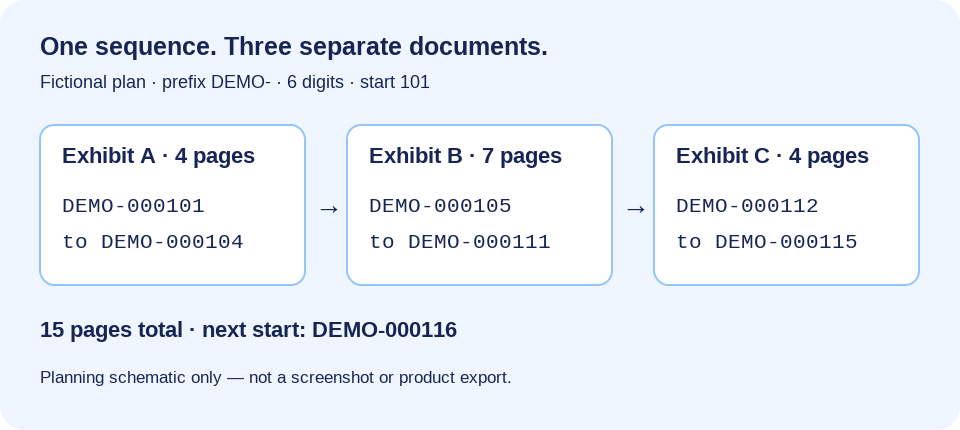
Use the Bates range calculator to check the arithmetic. Keep a record of the prefix and last issued number; a starting number by itself does not tell you which production it belongs to.
3. Preview placement and choose filenames
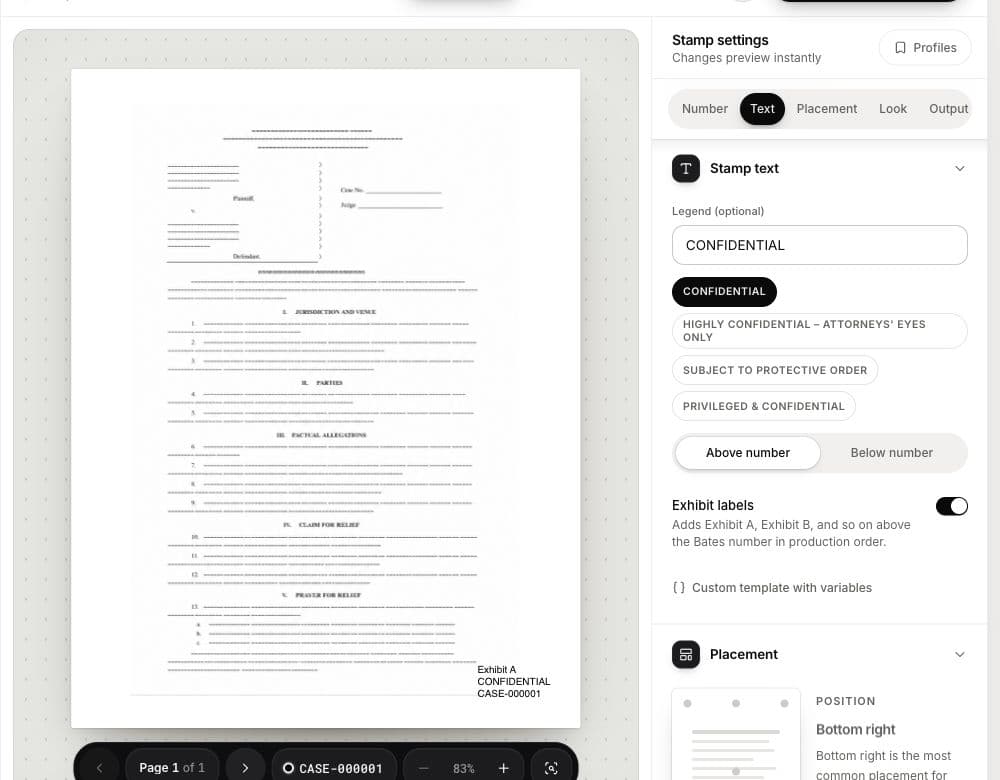
Choose a position, font size, and margin that leave the stamp readable without covering document content. Inspect different page sizes and orientations. If there is no safe space, prepare the page in an appropriate PDF editor before stamping.
Choose whether to preserve source filenames or use Bates-based names. A range name helps someone find the right document, but it does not replace the numbers printed on its pages. Keep the original name in your production record so you can trace output back to source.
4. Stamp, download, and reconcile
Run the production after reviewing the settings. Google sign-in is required for the one complete free production. Download the stamped files, the document list with ranges, and the per-page Bates index you need, then open the saved files outside the app to confirm they are usable.
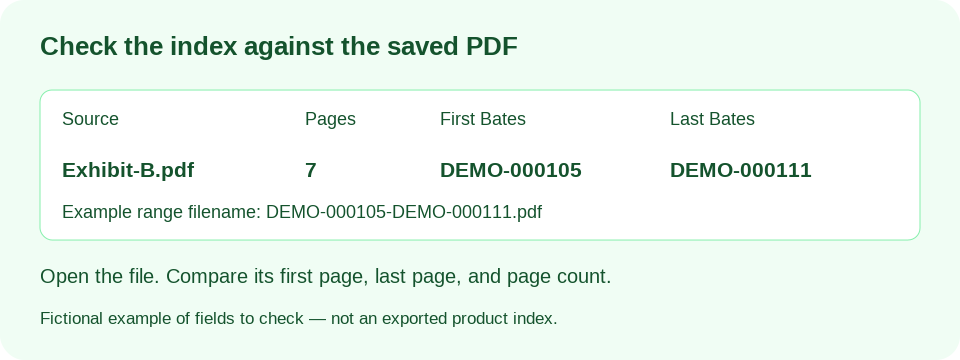
- Compare input and output file counts and page totals using the document list with ranges.
- Check the first and last stamp in each document against the document list with ranges.
- Confirm each following document starts one number after the previous document ends.
- Inspect placement on representative pages, including landscape pages.
- Check the saved filenames and confirm the intended recipient can use the delivery format.
An index CSV is a useful reconciliation record. It is not automatically a load file for a particular review platform. Confirm any required fields and import format with the recipient.
Before the next production
Record the last issued number and save your final files in your own controlled storage. Browser recovery is convenient, but it is not your production archive: the browser may evict local data, and closing the tab does not erase all locally stored results. The free production’s seven-day download permission is separate from local retention. See the privacy policy.
If you find a mistake before delivery, correct the settings and verify the replacement output. Do not silently change identifiers in files that have already been distributed; coordinate any correction with the people managing that production.
For planning a larger set, continue with continuous batch Bates numbering. If you are choosing software, see Acrobat vs Bates Stamping Software.
Try the workflow on sample exhibits
The built-in sample loads three one-page images. It is separate from the fictional 15-page example in this guide. Google sign-in is required to stamp. You get one complete free production with downloads available for seven days; further productions require a license.
Try these settings on sample exhibitsWatch the walkthrough
All video tutorialsBatesFast Quick Start: Stamp a PDF Batch and Create Printable Labels
Watch a small BatesFast sample production from stamp configuration through a printable label sheet. The recording shows three files totaling fourteen pages, a stamp preview, Bates range file names, batch processing, and Avery 5267 label generation.
Bates Numbering Example: A Worked PDF Production
Here is a worked Bates numbering example using fictional documents. We have a four-page agreement and a two-page email. Starting at ACME-000101, the six pages should finish at ACME-000106, with no repeated number between the two files.
Bates Numbering Best Practices: Preview Placement and Margins
Stamp placement should be checked against the document itself. Open a real page in the BatesFast preview and choose a position in the placement controls. Look at the page edges, existing footers, and scan content before deciding where the new identifier belongs.
How to Bates Number Legal Documents — Step by Step (DEF-000001)
Follow the BatesFast workflow for numbering sample legal documents. Choose a matter prefix, keep the sequence continuous across files, preview placement, and inspect the stamped output before using the settings for your own production.