Add a Confidential Stamp to a PDF with Bates Numbers
Print an agreed confidentiality legend on its own line above or below each Bates number. Preview the combined stamp before processing so the wording is readable and the document remains unobscured.
A PDF confidential stamp is visible text on a document. Bates Stamping Software can place that text alongside a sequential page identifier for prepared discovery records, investigation packets, and review copies. This is a digital legend workflow; it does not order a physical rubber stamp or decide which documents should receive a confidentiality designation.
Confirm the wording and placement
Use the wording specified by counsel or the person responsible for the document workflow. A particular production protocol may require a legend in a particular location. For example, a Western District of Missouri case ESI protocol addresses Bates numbers and confidentiality designations without obscuring source information. It is an example of case-specific instructions, not a universal stamping rule.
In Bates Stamping Software's simple legend mode, the legend and number form one stamp block. They cannot be placed in separate corners through that mode. If the instructions require the number at bottom right and the legend at bottom left, use a workflow that supports those separate placements.
Choose a preset or type the exact legend
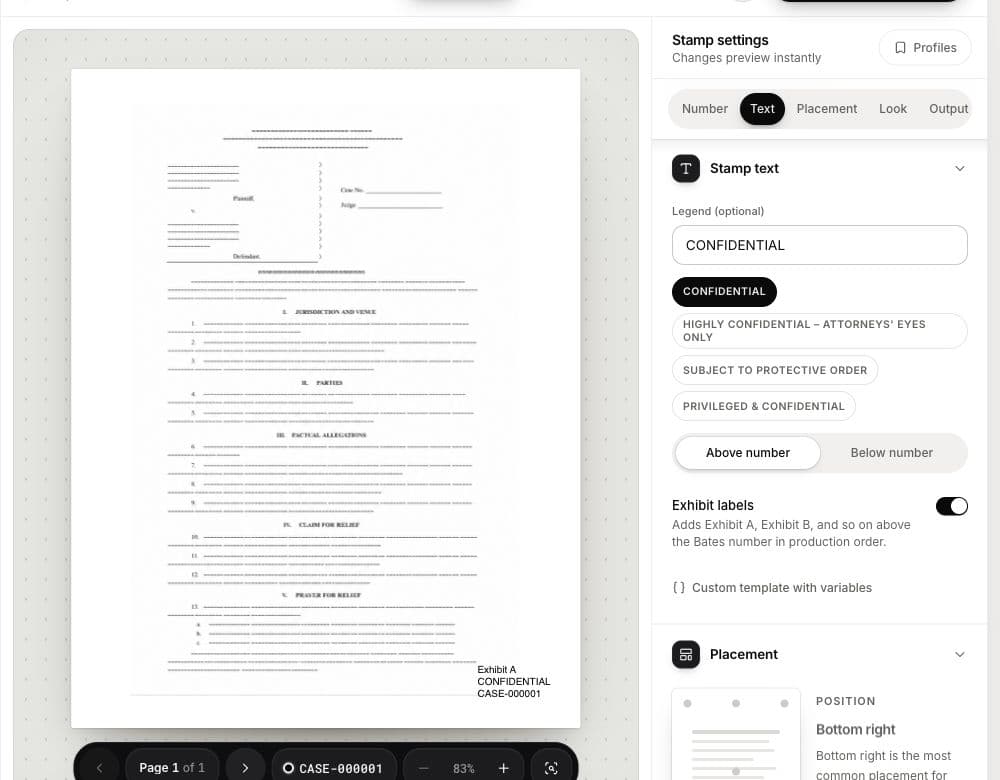
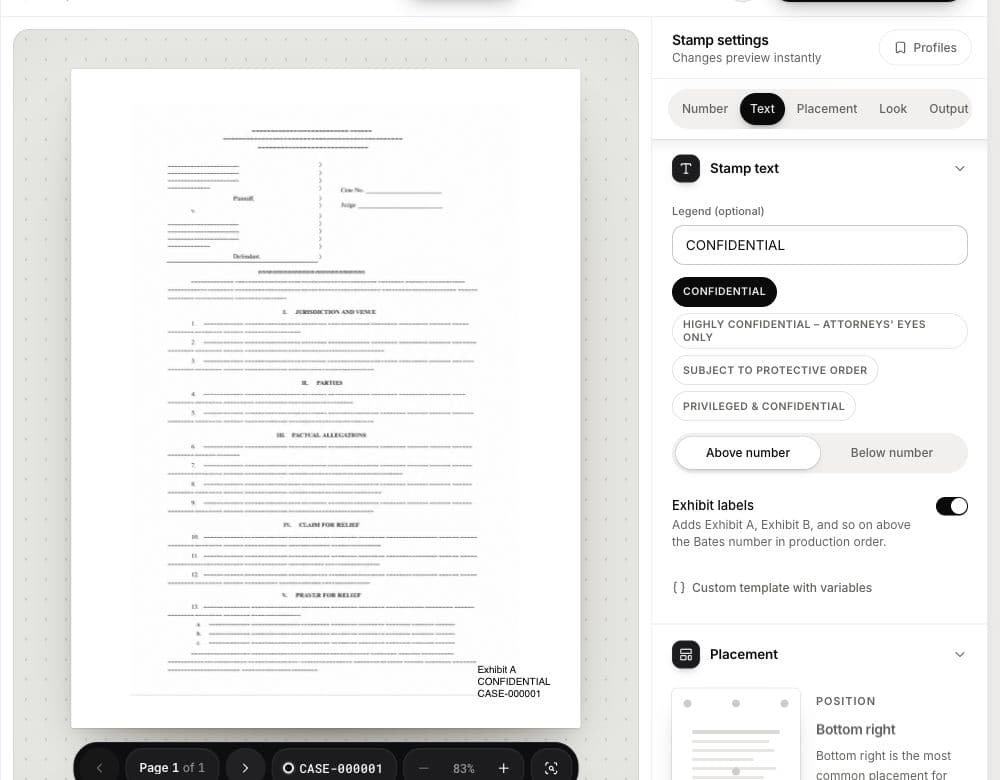
Add your prepared PDFs and open Text in the stamp settings. In Legend, type the approved wording or select one of the current presets:
CONFIDENTIALHIGHLY CONFIDENTIAL – ATTORNEYS' EYES ONLYSUBJECT TO PROTECTIVE ORDERPRIVILEGED & CONFIDENTIAL
Choose Above number or Below number. The preset is a text shortcut, not a classification decision. Bates Stamping Software does not determine whether a document is privileged or subject to an order.
Check a fictional four-page document
Suppose a reviewed four-page PDF needs CONFIDENTIAL above numbers starting at DEMO-000201. With Every page selected, the first page shows the legend plus DEMO-000201, and the fourth shows the same legend plus DEMO-000204. The next document continues at DEMO-000205.
Set the prefix and starting number in Number. Choose Every page in Output if every page needs the combined stamp. First page mode stamps only the first page; Skip cover leaves the first page of multipage documents unstamped. The legend follows that same mode.
Keep the stamp readable
In Placement, choose a suitable top or bottom position and margin. In Look, choose the font, size, ink, and opacity. Preview the longest wording on pages with signatures, existing footers, landscape orientation, and dense scans. A long attorneys' eyes only legend needs more room than the word Confidential.
The controls also include diagonal placement, but this guide uses a readable margin legend alongside Bates numbers. It does not promise a separate full-page watermark design. Lowering opacity changes the visibility of the whole stamp, including its number; check readability in the downloaded copy.
Finish redaction and protection separately
A legend does not redact underlying text, encrypt the file, restrict who can open it, or create legal privilege. The White box behind stamp option is a background for readability, not a redaction tool. Complete any required redaction and document-security steps in appropriate software before this numbering workflow.
One stamp configuration applies to the whole current batch. The app does not assign different legends based on document contents. Keep differently designated groups separate, follow your production instructions, and verify the next Bates start between runs when the sequence must continue.
Download and verify the marked copies
Run the job, download the PDFs, and open them outside the app. Check the exact wording, first and last identifiers, and placement. Export the document list and Bates index to retain a numbering record; those CSVs do not assess confidentiality.
For another batch, follow the supplemental numbering workflow. Preview a confidential legend on sample exhibits. One complete free processing run is available after Google sign-in; later runs require a license.