How to Add Page Numbers to a PDF: Page X of Y and Bates References
To print Page 1 of 12 on a PDF, use the template Page [page-number] of [page-count], choose Every page, preview its position, then download the numbered copy.
Visible numbers make reports, contracts, exhibits, and review packets easier to reference in print or on screen. They differ from a viewer's navigation labels. Adobe's page-label documentation explains that navigation numbers can differ from the numbers printed on a page. Bates Stamping Software adds visible text to the page; it does not edit PDF navigation labels.
1. Prepare the final pages
Keep the originals. Finish combining, removing, rotating, or redacting pages before adding numbers. Bates Stamping Software accepts PDFs, JPEGs, PNGs, and TIFFs, with image inputs converted to Letter-size PDFs. It does not merge several documents into one PDF or perform OCR. Count prepared PDFs with the free PDF page counter if you want to confirm totals first.
Check for existing page numbers before adding another set. A new template does not replace text already printed in the source PDF. If an old footer would conflict with the new numbers, prepare a clean copy in your PDF editor or choose a clear placement that keeps both references understandable.
2. Choose the exact page-number template
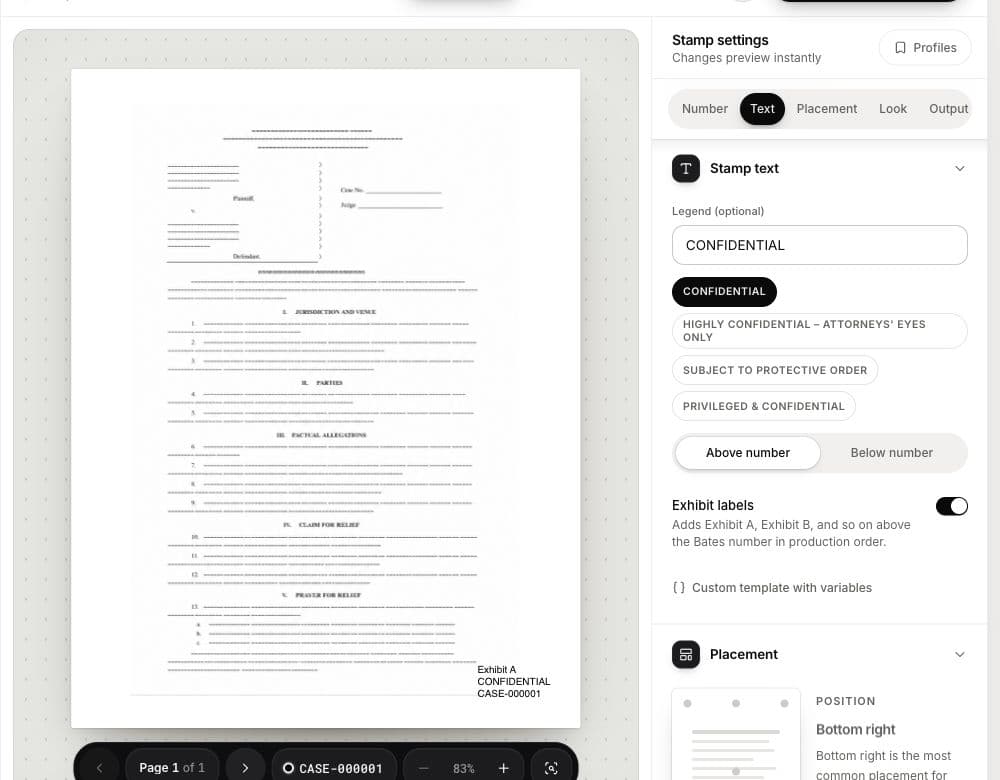
In the workspace, open Text → Custom template with variables. Replace the existing stamp text with one of these examples. The variables use square brackets and their full names; {page} and {pages} are not supported placeholders.
| Template | Example result |
|---|---|
Page [page-number] of [page-count] | Page 2 of 12 |
[page-number] / [page-count] | 2 / 12 |
[bates-number] · Page [page-number] of [page-count] | DEMO-000102 · Page 2 of 12 |
Turn off Exhibit labels if you want pagination alone. A template without [bates-number] displays a Bates-specific reminder in the settings; the page-number variables still render. Keep original filenames in Output when you do not want Bates identifiers in your saved filenames.
3. Understand what “of Y” counts
[page-number] is the physical page position within the current input file, starting at one. [page-count] is that file's total pages. A fictional four-page agreement and three-page report therefore receive Page 1 of 4 through Page 4 of 4, then Page 1 of 3 through Page 3 of 3.
These variables do not produce Page 1 of 7 through Page 7 of 7 across two files. Merge the documents elsewhere first if you need one combined document with a shared total. [doc-number] and [doc-count] count files and their queue positions, not pages.
For a continuous sequence across separate files, use [bates-number] and choose the prefix and starting value in Number. Leading zeros in Starts at set the minimum number width. With no prefix and Starts at set to 1, the sequence gives 1, 2, 3 onward across the batch. See continuous batch numbering for that workflow.
4. Preview the footer or header
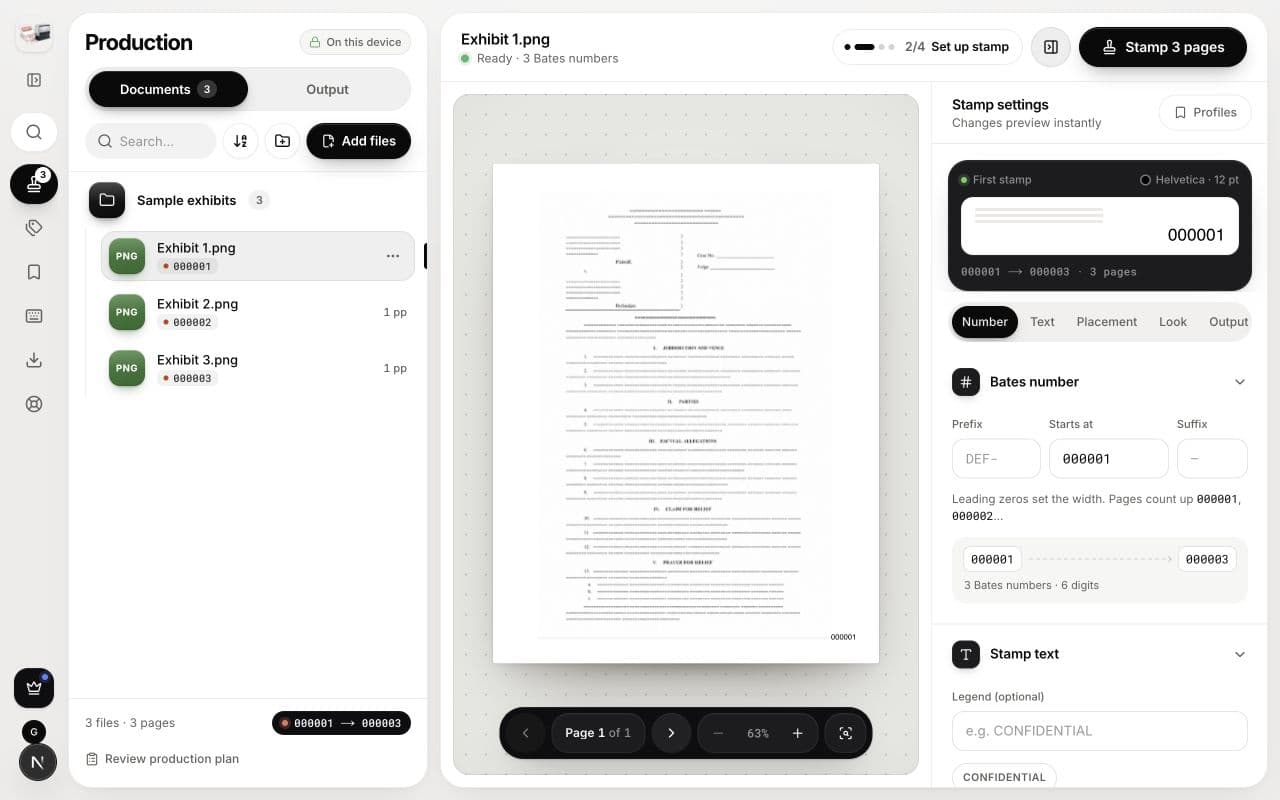
In Placement, choose Bottom center for a centered footer, or another top/bottom position, and adjust Margin from edge. In Look, choose the font, size, and ink color. All lines in one template share the selected placement. Inspect pages with signatures, existing footers, different sizes, and landscape orientation before running.
5. Choose the pages to stamp
Select Every page for normal pagination. Skip cover leaves the first page of a multipage document unstamped, but the second physical page still reads Page 2, not Page 1. The total still includes the cover. Single-page documents remain stamped. First page mode stamps only the first page.
There is no page-number offset, Roman-numeral style, or separate section numbering control for [page-number]. Prepare those formats in a suitable PDF editor when the document calls for them.
6. Download and check the result
Run the job and open the downloaded PDFs outside the app. Verify the first, middle, and final page numbers, total page count, and placement. For legal packets that need both pagination and unique page identifiers, keep [bates-number] in the template and follow the checked Bates stamping workflow.
Try a page-number template on sample documents. Bates Stamping Software includes one complete free processing run after Google sign-in; later runs require a license.