Workflow Guide
How to Print Sequential Numbered Labels for Records and Binders
Create numbered labels for paper files, inspection records and binders with prefixes, zero padding, Avery layouts and a checked print workflow.
By Bates Stamping Software · · 6 min read
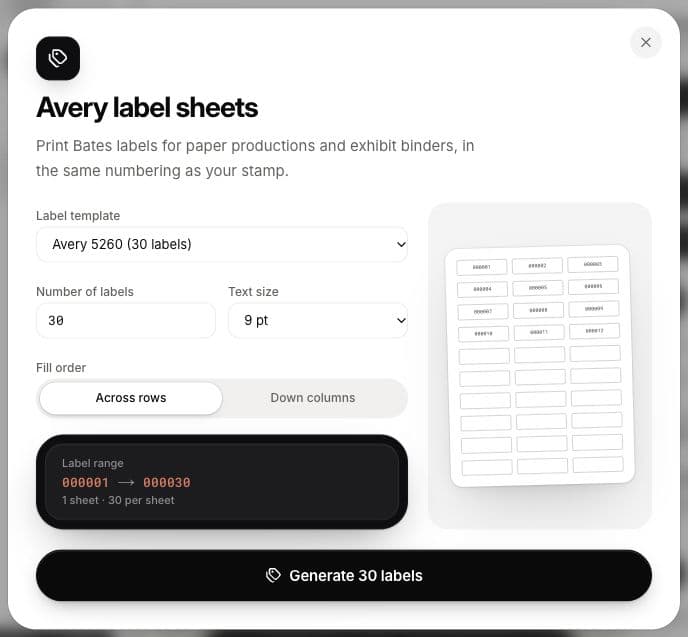
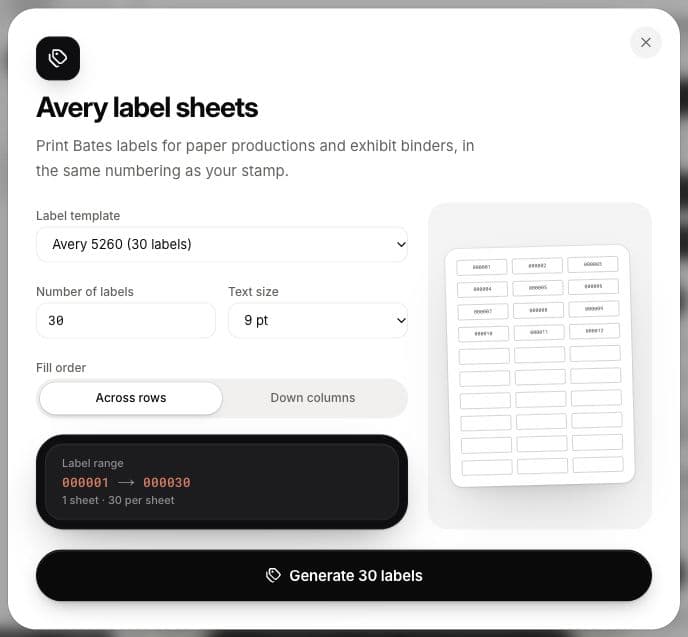
Sequential numbered labels assign a different identifier to each sticker: FILE-000101, FILE-000102, and so on. Bates Stamping Software generates these as a printable PDF using supported Avery layouts. This is useful when you need a consistent reference for paper files, evidence packets, inspection records or binders.
Start by deciding what one label represents. A label on a folder identifies the folder; a label on every page identifies each page. Keep that choice consistent, especially if you also distribute digital copies.
Choose a numbering convention that survives the next batch
Use a short prefix to identify the collection, enough zero padding to keep numbers readable, and a recorded starting number. A fictional inspection batch might begin INSPECT-000401. Keep descriptions, dates and locations in your own record list, where they can be updated without changing the identifier.
| Workflow | Example label | Record to keep separately |
|---|---|---|
| Archive folders | FILE-000101 | Folder title and storage location |
| Inspection packets | INSPECT-000401 | Inspection date and packet contents |
| Claim attachments | CLAIM-000051 | Attachment description and source |
| Review binders | REVIEW-000001 | Binder owner and index |
These are organizational examples, not mandated formats or automated inventory features. Bates Stamping Software creates the identifiers; it does not maintain an asset registry or extract facts from your documents.
Generate labels without importing files
- Open Bates Stamping Software, set the starting Bates identifier, and select a template that includes the Bates variable.
- Open Avery labels. Choose the stock layout and the number of labels. Existing documents are optional.
- Choose text size and fill order. Across rows suits a row-by-row peeling workflow; Down columns suits a column-by-column workflow.
- Check the displayed label range and sheet count, then generate the PDF.
- Save the file and inspect a proof before applying labels to the real collection.
The app offers 15 layouts covering Letter and A4 sheets. Short codes can fit the 80-label 5267 family; the 30-label 5260 family gives more room. A label template is a fixed geometry, so a nearby product number is not enough to establish compatibility.
Worked example: 65 inspection packets
Beginning at INSPECT-000401, 65 labels end at INSPECT-000465. A 30-label layout uses three sheets: 30, 30 and 5 labels. An 80-label layout uses one sheet. The next batch begins at 466 if it belongs to the same sequence. This example describes the expected arithmetic, not an exported customer job.
Use the range calculator to check the final number. Record the issued range before starting another batch, and keep separate sequences visibly distinct. A repeated numeric portion is only useful when the complete identifiers remain unambiguous.
Test alignment and legibility
Choose the correct Letter or A4 page size and Actual size or 100% scaling. Print on plain paper first and compare it with the stock. Avery’s printing guidance explains feed, media and guide settings. Check small text, the first and last rows, and long prefixes.
Bates Stamping Software starts at the first label position on a fresh sheet. It currently has no skip-used-label control, custom layout or printer-offset adjustment. If you need partial-sheet placement, address mail merge, barcodes, QR codes or a different text block on each label, choose a tool designed for that workflow rather than assuming sequential numbering supplies it.
Pair numbered labels with a usable record list
Before applying stickers, prepare your own list connecting each identifier to the physical item. Check off labels as they are applied. Keep the generated PDF and the list together. If one label is damaged, record the replacement so the same number does not accidentally identify two different items.
For digital documents, Bates Stamping Software can stamp PDFs and images and export a page index and document range list. Those exports describe the digital run, not a standalone label inventory. Do not assume a folder number automatically matches the pages inside it.
Open the app and plan your numbered labels. Google sign-in is required for generation. You get one complete free production; label generation consumes that run, and additional runs require a license. Review the current per-device pricing before using it for repeat batches.