Bates Production Index: Export and Check Your Document Ranges
A Bates production index connects each issued identifier to its document and saved file. Export it from the finished run, then use it to check page counts, document ranges, and the next available number.
A folder of numbered PDFs tells only part of the story. A range-based filename may help someone find a document, while an index preserves the connection to the original filename and individual pages. That connection is useful for discovery batches, internal investigations, insurance claim records, and other prepared evidence packets.
This guide uses “production index” to mean a document-delivery record. A numbering index does not decide whether a production satisfies a rule or agreement. The federal civil rules govern discovery organization and production, while particular matters can require additional fields or formats.
Choose the export for the check you need
Bates Stamping Software offers two CSV exports after a completed run. Both come from the finished job, so they use the numbering assigned to the stamped files rather than a separately maintained draft spreadsheet.
| Export | One row for | Included columns |
|---|---|---|
| Bates index — every page | Each stamped page | Bates Number, Document #, Page in Document, Original File, Output File |
| Document list with ranges | Each input document | Document #, Original File, Output File, Pages, Pages Stamped, First Bates, Last Bates |
When exhibit labels are enabled, both CSVs also include an Exhibit column with the configured label for that document. Use the every-page index to trace an individual citation. Use the document list to reconcile whole-file ranges and page totals. If you only stamp first pages, the index has one row per document; it does not assign identifiers to unstamped pages. The document list distinguishes total pages from pages actually stamped.
Work through a fictional batch
Consider three prepared PDFs totaling ten pages, beginning at DEMO-000501. Select Every page and name output files by their Bates ranges. The expected document list contains:
| Original file | Pages | First Bates | Last Bates | Output file |
|---|---|---|---|---|
| Agreement.pdf | 4 | DEMO-000501 | DEMO-000504 | DEMO-000501-DEMO-000504.pdf |
| Invoices.pdf | 3 | DEMO-000505 | DEMO-000507 | DEMO-000505-DEMO-000507.pdf |
| Inspection notes.pdf | 3 | DEMO-000508 | DEMO-000510 | DEMO-000508-DEMO-000510.pdf |
The every-page index has ten data rows. Its row for DEMO-000506 identifies document 2, page 2, original file Invoices.pdf, and the invoices' range-named output. That row gives a precise place to check a citation without treating the filename as the page identifier.
The last identifier is 501 + 10 − 1 = 510, and the next is 511. Plan the arithmetic independently with the Bates range calculator. A planned CSV is useful before stamping; the completed-job exports record the output afterward.
Prepare the plan, then export the finished result
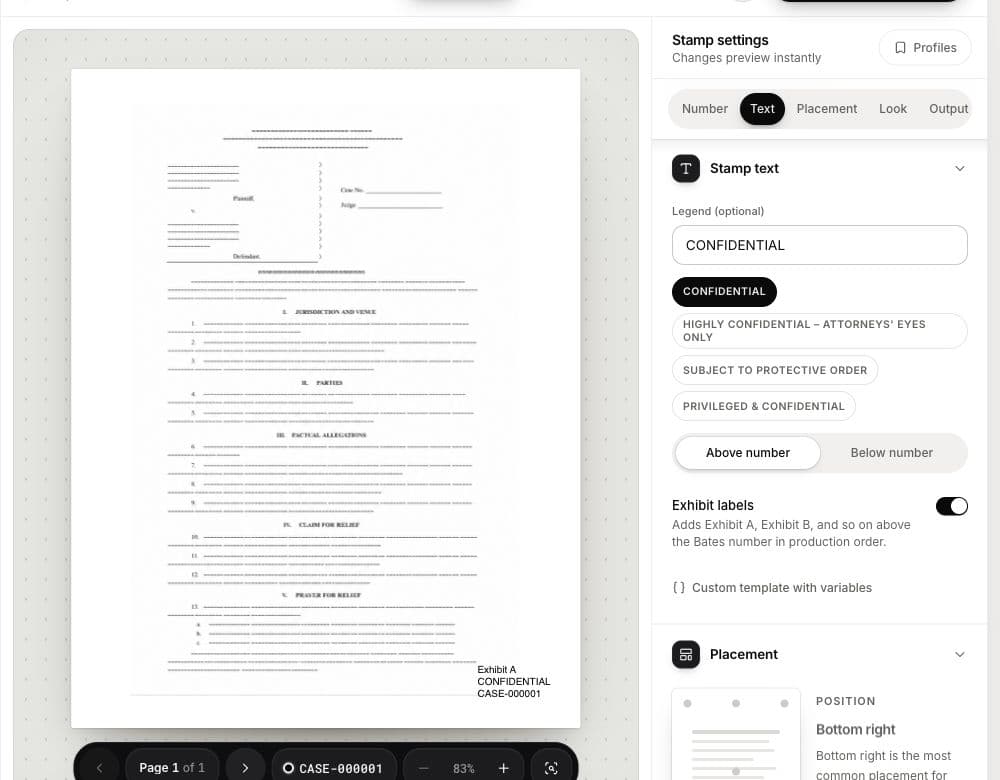
Keep the originals and complete any OCR, redaction, or page edits first. Add supported PDFs or images to Bates Stamping Software, arrange them, and choose the start, prefix, digits, stamp mode, and filenames. Open the production plan to review each document's expected range.
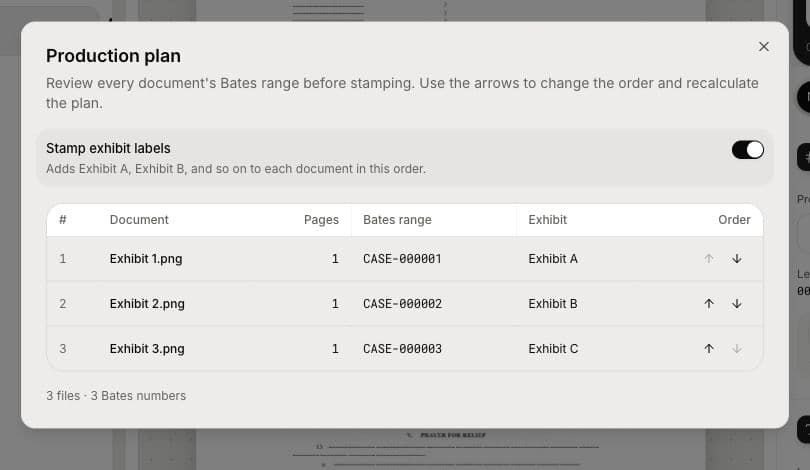
Run the batch, download the numbered PDFs, and choose the CSV exports in the completed production's download options. Open the files in your spreadsheet application. Preserve identifiers as text if the application offers import settings, particularly when a number has leading zeros and no alphabetic prefix.
Check the index against the saved PDFs
- Add the document list's Pages column and compare it with your final input total.
- Compare Pages Stamped with the selected stamp mode and the number of every-page index rows.
- Open each document's first and last stamped page and confirm its exported identifiers.
- Check that the output filenames in the CSV exist in your saved delivery folder.
- Review representative middle pages, rotated pages, and pages with dense margins.
If One PDF per page is enabled, the index maps stamped pages to their individual output PDFs. The document summary's Output File cell reports the number of files for a document with multiple outputs. Use the every-page index when you need the individual names, and check the delivery format with the recipient.
Add matter-specific fields separately
The built-in CSVs do not include document descriptions, custodians, document dates, request numbers, confidentiality assessments, or privilege claims. Keep the exported record intact and add reviewed information to a working copy when your tracking process calls for it.
A Central District of California ESI protocol, for example, lists beginning/ending Bates fields alongside family, custodian, text-path, and other metadata. Those additional requirements demonstrate why a basic numbering CSV should not be assumed to be a review-platform load file. Bates Stamping Software does not create DAT/OPT files or extract native metadata.
Keep a delivery record you can continue
Bates Stamping Software also exports a JSON production report containing job settings, per-document ranges, exhibit labels when enabled, summary totals, and the next Bates identifier. Save the chosen records beside the final files in your controlled storage. Browser recovery does not replace your production archive.
For proof of what was delivered, export the receipt. The JSON receipt records each output file's SHA-256, size, page count, Bates range and exhibit label, and the condition of every page: stamped with which number, or left unstamped by the page rule. A CSV version and a standard SHA256SUMS checksum list carry the file names and hashes. The receipt lists output names only; source file names, folders and any withheld files appear in a separate internal crosswalk that you keep. To check a saved or sent set against its receipt, use the free production verifier. The receipt is unsigned: a matching hash shows a file is byte-for-byte identical to the one recorded, not who created it or that a production complies with a protocol.
Record the delivery date and batch name separately, and use the final last identifier when preparing a supplemental production. For the stamping steps, see how to add Bates numbers to PDFs.
Try the numbering and index workflow on sample exhibits. One complete free processing run is available after Google sign-in; further runs require a license.