Label Guide
Avery 5160, 5260 & 8160: Print Sequential Bates Labels
Choose a compatible 30-label Avery layout, generate sequential Bates numbers, and check PDF print scale before labeling paper records.
By Bates Stamping Software · · 6 min read
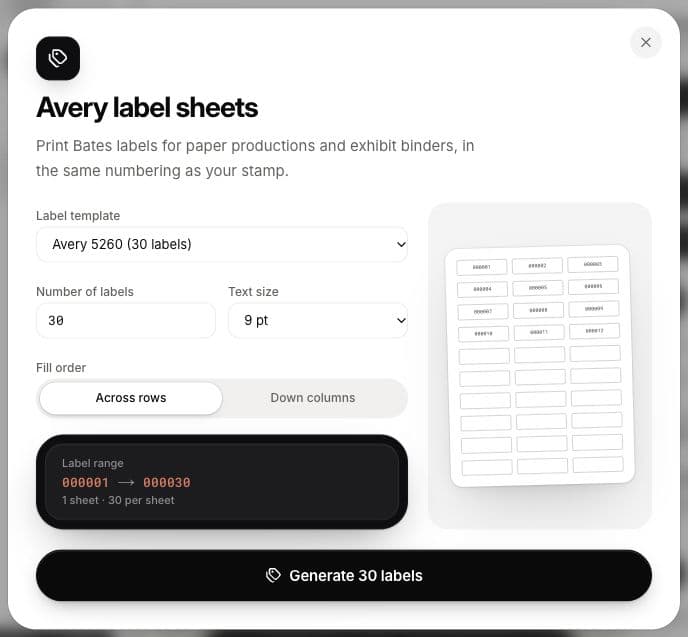
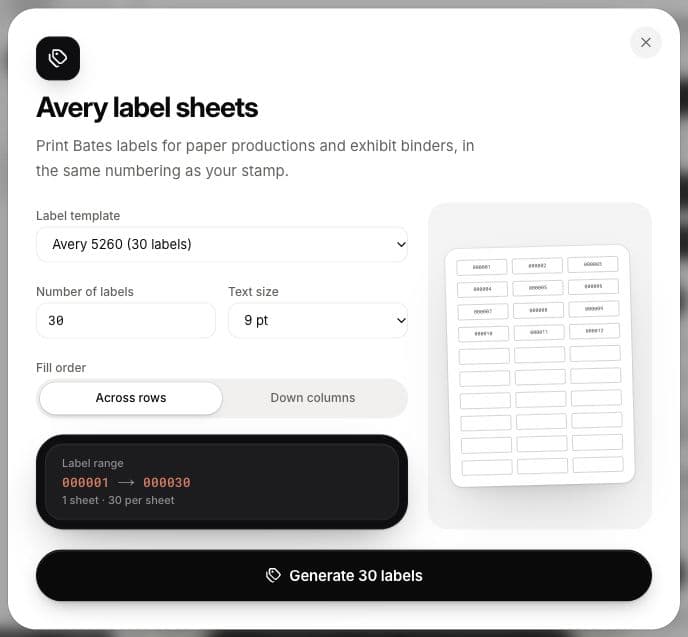
For numbered paper records, Avery 5160, 5260 and 8160 belong to the same 30-label layout family. In Bates Stamping Software, choose Avery 5260 (30 labels) or the explicit 8160 option, enter your starting identifier, and generate a printable PDF. If you need a blank Word template or address mail merge, use Avery’s official template downloads; Bates Stamping Software is a sequential numbering tool.
Which layout should you select?
Avery lists 5160 and 8160 as compatible with its 5260 template. Each label is 1 inch high and 2⅝ inches wide. Check the product code on your package and use media suitable for your printer; matching geometry does not make inkjet stock suitable for a laser printer.
| Stock on your desk | Choice in Bates Stamping Software | Sheet arrangement |
|---|---|---|
| Avery 5260 | Avery 5260 (30 labels) | 3 columns × 10 rows |
| Avery 5160 | Compatible 5260 layout; test first | 3 columns × 10 rows |
| Avery 8160 | Avery 8160 (30 labels) | 3 columns × 10 rows |
The sheet is US Letter, 8½ × 11 inches. It differs from A4 layouts such as L7160. Do not choose by label count alone. For smaller identifiers and 80 labels per sheet, see the 5267 Bates label workflow.
Set up a numbered record batch
- Open Bates Stamping Software. Set the starting Bates number in the stamp settings, for example
RECORD-000201. - Check the stamp text template. The standard Bates template uses the current identifier; a fixed text template prints fixed text. Keep the wording short enough for the label.
- Open Avery labels in the sidebar. Choose the 5260 layout, the label count and the text size.
- Choose Across rows or Down columns, depending on how you will peel and apply the labels.
- Check the displayed range and sheet count. Generate the PDF, save it, and inspect the text before printing.
You can generate standalone sheets without importing documents. If documents are already loaded, the dialog can use their stamped-page total as its initial count; replace that count if you are numbering folders instead of every page. Generating labels uses the one free production after Google sign-in, so review settings before generating.
Worked example: 45 physical records
This fictional batch begins at RECORD-000201 and ends at RECORD-000245. It needs two sheets: 30 labels on the first and 15 on the second. The next starting identifier is RECORD-000246. Use the Bates range calculator to check your own sequence.
Across rows places 201, 202 and 203 in the first row. Down columns places 201 through 210 in the first column, then 211 at the top of the next column on a full sheet. Choose the direction your operator expects and keep a simple record of which item received each identifier.
Print a proof before using label stock
Open the generated PDF in a viewer and use Letter paper with Actual size or 100%. Disable fit-to-page scaling. First print on plain paper and compare it against the label sheet. Follow Avery’s printer guidance for the paper feed, media setting and guides.
If text drifts farther out of alignment down the page, check scaling and paper size. If every label has the same offset, check feeding and alignment. Bates Stamping Software currently has no printer-offset adjustment or partial-sheet starting position. Use a fresh sheet; changing the first Bates number does not skip used label positions. Avery Design & Print offers different layout controls when those are needed.
Connect the paper labels to digital copies
If you also number PDFs, agree whether one identifier represents a page, a whole document or a folder. A 45-document label sheet should not be assumed to match 45 PDF pages when the documents contain multiple pages. Use the document range list and Bates index to map the digital production separately, then reconcile it with the physical record list.
Automatic Exhibit A/B labels on PDFs are a separate feature and do not appear automatically on label sheets. Read the PDF exhibit labeling guide if you need lettered exhibits.
Open Bates Stamping Software to set your label range. You can inspect the settings before generating your free production; see pricing for further runs. Bates Stamping Software is independent of Avery.