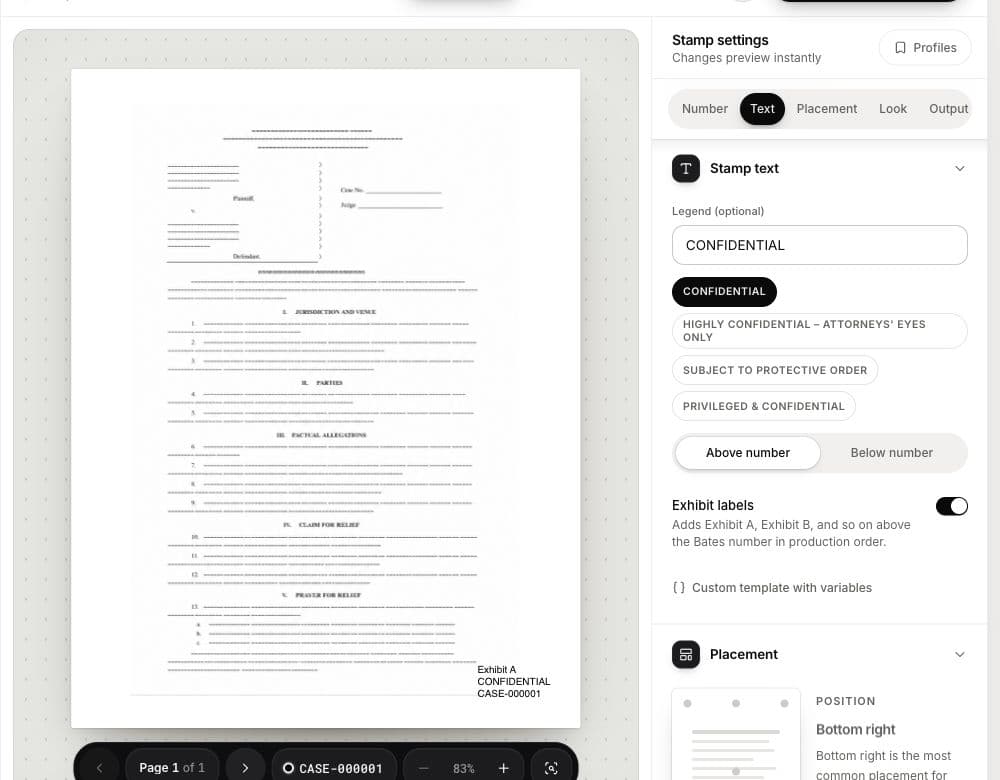
Bates Numbering for Beginners: Your First Document Stamping Project
New to Bates numbering? This beginner-friendly guide walks you through your first project step-by-step, helping you avoid common mistakes and build confidence.
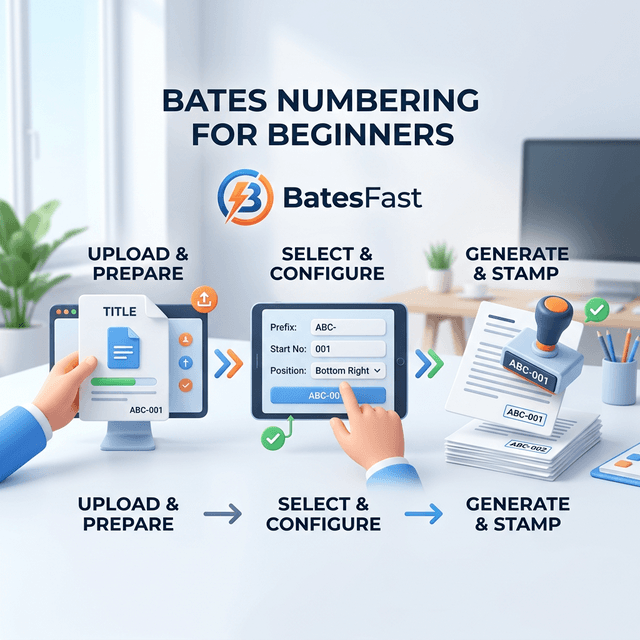
What You'll Learn
This tutorial is designed for complete beginners. We'll use Bates Stamping Software, the easiest and most reliable Bates numbering tool available. By the end, you'll understand:
- Basic Bates numbering concepts and terminology
- How to choose the right numbering format
- Step-by-step process for your first project
- Common mistakes and how to avoid them
- Best practices for professional results
✓ Why Bates Stamping Software is Perfect for Beginners
- • No installation or setup — just open your browser and start
- • one free preview run — no credit card required
- • One-time $199 purchase — no recurring fees
- • Simple, intuitive interface designed for first-time users
- • Your document contents are processed on your device
- • Live preview helps you inspect placement before running; test a representative batch on your device
- • Works on any device — Windows, Mac, Linux, Chromebook
Unlike Adobe Acrobat ($300/year subscription, “crashes a few times a week” per G2 reviews), Bates Stamping Software is a one-time purchase specifically designed to make Bates numbering simple and reliable. Volume discounts for 15+ licenses.
Understanding the Basics
Let's start with the fundamentals you need to know.
What is a Bates Number?
A Bates number is a unique identifier placed on each page of a document. It typically looks like this:
Why Use Bates Numbers?
Bates numbers serve three main purposes:
- Unique Identification: Every page gets a unique ID
- Organization: Documents stay in logical order
- Reference: Easy to cite specific pages in court
Your First Project: Step-by-Step
📋 What You'll Need
- • PDF documents to number
- • Web browser (Chrome, Firefox, Safari, or Edge)
- • 5-10 minutes of time
Step 1: Choose Your Format
For your first project, keep it simple. We recommend:
Six digits with leading zeros. This format works for up to 999,999 pages.
Step 2: Open Bates Stamping Software
Go to Bates Stamping Software.com in your web browser. No installation needed; sign in to start the free preview run.
Step 3: Configure Settings
In the Stamp Config tab:
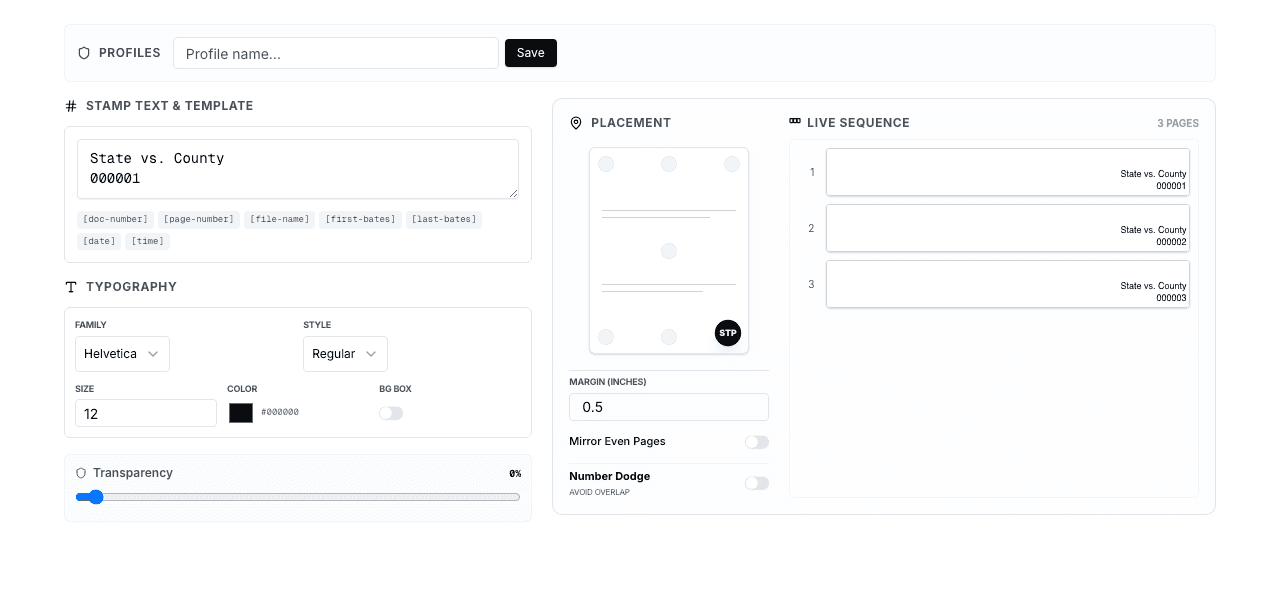
- Enter
000001as your starting number - Leave stamp text as
[bates-number] - Choose "Bottom Right" position
- Select "Helvetica Bold" font, size 12
- Keep color as black
Step 4: Add Documents
Click the Documents tab and add your PDF files. Start with just 2-3 documents for practice.
Step 5: Process
Go to the Run tab and click "Run Bates Numbering". Your documents will be processed in seconds.
Step 6: Download and Review
Download your stamped PDFs and open them to verify the Bates numbers appear correctly.
Common Beginner Mistakes
Mistake #1: Not Enough Digits
Using 001 when you have 1,000+ pages.
✓ Solution: Use 6 digits (000001) for most projects.
Mistake #2: Wrong Document Order
Not organizing documents before numbering.
✓ Solution: Arrange documents in the Documents tab before processing.
Mistake #3: Not Keeping Originals
Deleting original files after numbering.
✓ Solution: Always keep copies of original, un-numbered documents.
Quick Tips for Success
Start Small
Practice with 2-3 documents before tackling large batches.
Use Simple Formats
Stick to basic numbering until you're comfortable.
Test First
Always test with sample documents before production runs.
Keep Records
Note your Bates ranges and settings for future reference.
Next Steps
Once you're comfortable with basic Bates numbering, explore these advanced topics:
- Custom prefixes and suffixes for case identification
- Batch processing multiple document sets
- Automatic file renaming with Bates numbers
- Generating Avery labels for physical documents
- Advanced positioning and formatting options
Frequently Asked Questions
What is the best Bates number format for beginners?
Start with a simple 6-digit format like 000001. This handles up to 999,999 pages and is universally recognized. Once you're comfortable, you can add prefixes (like a case name) or suffixes for more advanced organization.
Do I need to install software to add Bates numbers?
No. Bates Stamping Software works entirely in your web browser — no downloads or installations required. Sign in for one free preview run, select your PDFs, configure your settings, and process. It works on any device with a modern browser.
How long does it take to Bates number documents?
With Bates Stamping Software, processing is nearly instant. A 100-page document takes about 1-2 seconds, and even 1,000+ pages process in under 10 seconds. The most time-consuming part is organizing your documents in the correct order before processing.
Can I undo Bates numbering if I make a mistake?
Bates Stamping Softwarecreates new stamped copies of your documents — your originals are never modified. If you make a mistake, simply adjust your settings and re-process the original files. This is why it's important to always keep your original, un-numbered documents.
Where should Bates numbers be placed on the page?
The most common placement is the bottom-right corner of each page. This is the industry standard and what most courts expect. Bates Stamping Software lets you choose from multiple positions including all four corners, center top, and center bottom.
Are my documents safe when using Bates Stamping Software?
Yes, completely. Bates Stamping Software processes everything client-side in your browser using WebAssembly technology. Your documents are never uploaded to any server — they stay on your computer the entire time. This makes it safe for confidential legal documents.
Ready to Try Your First Project?
Bates Stamping Software makes it easy for beginners. one free preview run — start numbering in minutes, then $199 one-time purchase.
Start Your First Project