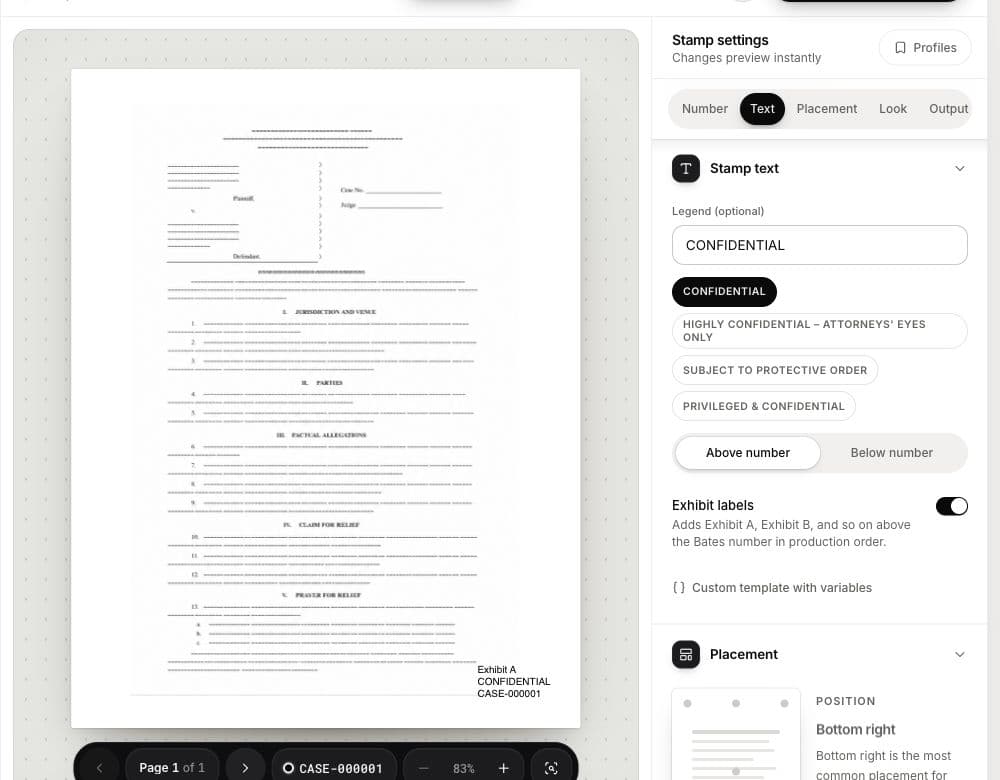
Bates Numbering PDF: How to Bates Stamp a PDF
Bates numbering a PDF means stamping a unique, sequential identifier onto every page of the file so each page can be cited and retrieved. This guide shows how to add Bates numbering to a PDF in minutes with Bates Stamping Software — one full production free after sign-in, with no uploads or Adobe subscription.
Fast answer: how to Bates number a PDF
To Bates number a PDF, use dedicated Bates stamp software that applies sequential identifiers to every page. With Bates Stamping Software you open the app in any browser, drag and drop your PDF files, set a prefix (for example, ABC), a starting number, and digit padding, choose where the stamp sits on the page, then click Run. Bates Stamping Software stamps each page locally in your browser, so the PDF is never uploaded to a server, and continuous numbering carries the Bates range across every file in the batch. You can then download the stamped PDFs individually or as a ZIP, optionally renamed with their first and last Bates numbers. The first full production is free after Google sign-in; continued use is a one-time $199 purchase per device, excluding tax — a practical alternative to Bates numbering a PDF in Adobe Acrobat.
Bates stamp a PDF nowWhat is Bates numbering on a PDF?
Bates numbering on a PDF is the practice of stamping a unique, sequential identifier onto every page of a PDF file. The name comes from the Bates Manufacturing Company, whose mechanical numbering machines stamped paper documents for over a century. Today the same job is done digitally: a PDF Bates stamp writes a fixed prefix plus an incrementing number — such as SMITH000001, SMITH000002 — into a corner of each page.
Legal teams rely on Bates-numbered PDFs so that a deposition, a motion, or opposing counsel can reference a single page precisely. “Please turn to SMITH000512” is unambiguous in a way that “page 512 of the third file” is not. The same discipline helps medical records teams, compliance departments, and corporate legal groups keep large productions organized and defensible.
How do I add Bates numbering to a PDF?
Adding Bates numbering to a PDF takes five steps in Bates Stamping Software. The whole process runs in your browser, so there is nothing to install and your files are never uploaded.
- 1
Open Bates Stamping Software in your browser
Go to the Bates Stamping Software app. There is nothing to install and no plugin to enable — it runs in any modern browser.
- 2
Add your PDF files
Drag and drop one PDF or a whole batch. You can mix in JPEG, PNG, and TIFF images; they are converted and stamped in the same run.
- 3
Configure the Bates stamp
Set the prefix, starting number, digit padding, position, font, size, and color. Continuous numbering carries the range across every file automatically.
- 4
Click Run
Bates Stamping Software stamps every page locally in your browser. Most productions finish in seconds, even large multi-hundred-page files.
- 5
Download your stamped PDFs
Export files individually or as a single ZIP archive, optionally renamed with their first and last Bates numbers.
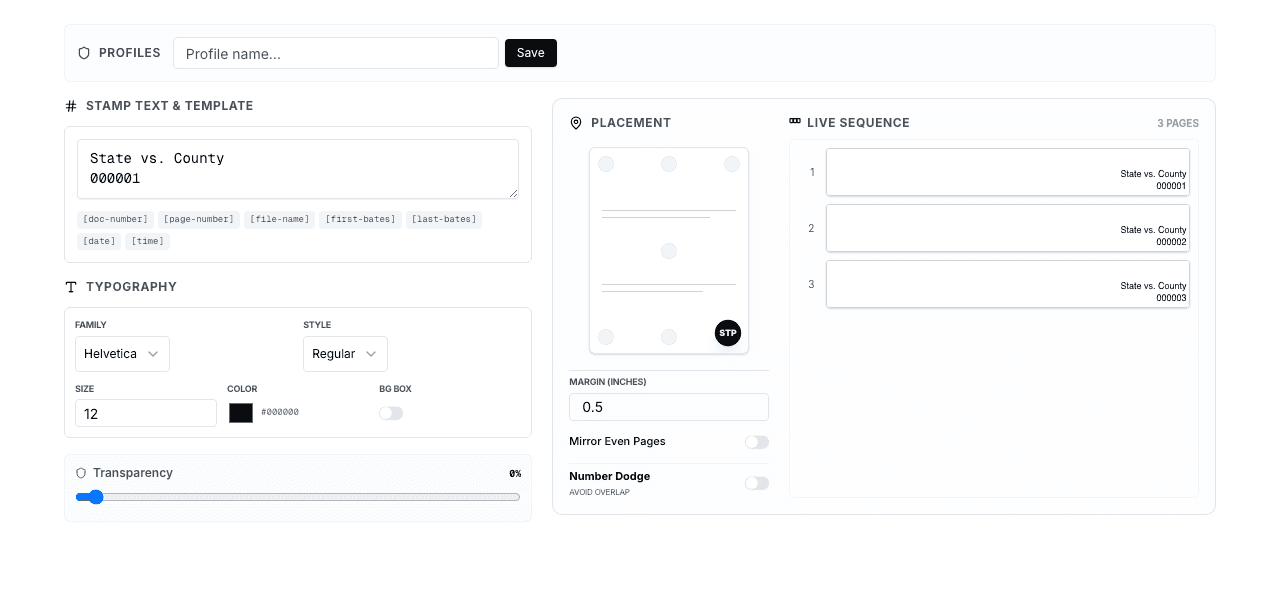
How to Bates stamp a PDF for free
You can Bates stamp a PDF for free with Bates Stamping Software. After signing in, you get one full processing run — stamp your PDF, download the result, and confirm the format is exactly what your production needs before you buy. There is no watermark on the output.
Check where any online PDF tool processes your documents before adding confidential files. Bates Stamping Software processes the pages locally in your browser, so source PDFs are not uploaded for stamping.
Bates numbering a PDF in Adobe Acrobat vs Bates Stamping Software
Adobe Acrobat Pro can Bates number a PDF, but it is a full PDF suite priced on a recurring subscription. If Bates numbering is the job you need, a purpose-built browser workflow may be simpler.
| Need | Bates Stamping Software | Adobe Acrobat Pro |
|---|---|---|
| Price | $199 one-time | Recurring monthly subscription |
| Install | None — runs in the browser | Desktop install required |
| Where files go | Stay on your device (client-side) | Local, but cloud features may sync |
| Batch + image inputs | PDF, JPEG, PNG, TIFF in one run | Supported non-PDFs are converted to PDF |
| Output file naming | Optional Bates range in filenames | Output Options can add Bates numbers to filenames |
For the Acrobat Pro menu and stamping steps, read how to Bates number in Adobe. For a feature comparison, read Adobe Acrobat vs Bates Stamping Software.
Bates numbering confidential PDFs without uploads
Discovery PDFs are often privileged work product or HIPAA-sensitive medical records. Bates Stamping Software processes every page client-side in your browser, so the source PDF is never transmitted to a server. That keeps confidential productions inside your control while still giving you batch stamping, continuous ranges, and exportable Bates indexes.
Why local processing matters for privileged filesBates numbering PDF format best practices
A clean, consistent Bates format prevents renumbering headaches later. Follow these rules when you stamp a PDF production:
- Use a consistent alphabetic prefix per producing party (for example, SMITH or DEF).
- Zero-pad digits to cover your largest production — six digits (000001) handles up to 999,999 pages.
- Place the stamp in a bottom corner so it never covers exhibit text or existing page numbers.
- Keep one continuous Bates range across a document set rather than restarting per file.
- Export a Bates index so every document's first and last number can be verified later.
Need non-standard formats? See custom Bates number formats for prefixes, suffixes, and template variables.
Frequently asked questions about Bates numbering PDFs
What is Bates numbering on a PDF?
Bates numbering on a PDF is the practice of stamping a unique, sequential identifier onto every page of a PDF file. Each page receives a number, often with a prefix such as ABC000001, so legal, medical, and business teams can cite, index, and produce documents without confusion.
How do I add Bates numbering to a PDF?
Open Bates Stamping Software in your browser, drag and drop your PDF files, set a prefix, starting number, digit padding, and position, click Run, then download the stamped PDFs individually or as a ZIP. Files are processed locally and never uploaded.
Can I Bates stamp a PDF for free?
Yes. After Google sign-in, Bates Stamping Software includes one full free production, so you can stamp your PDFs and download the result. Continued use is a one-time $199 purchase per device, excluding tax.
How do I Bates number a PDF in Adobe Acrobat?
In Acrobat Pro, open a PDF and select Edit, then More, Bates numbering, and Add. Add and order the PDFs, insert the Bates number in a header or footer box, and set its starting number and format. Follow our step-by-step Adobe guide for output settings and checks.
Is it safe to Bates number confidential PDFs online?
It depends on the tool. Many online PDF tools upload your file to a server. Bates Stamping Software processes PDFs entirely client-side in your browser, so privileged and confidential documents never leave your computer.
What format should Bates numbers on a PDF use?
A standard Bates number on a PDF uses a fixed alphabetic prefix plus zero-padded digits, such as SMITH000001. Keep the prefix consistent per producing party, pad to a digit count that covers your largest production, and place the stamp in a corner where it will not cover document text.
Related Bates numbering guides
How to Add Bates Numbers to PDF Documents
The full step-by-step tutorial with configuration and file-naming detail.
How to Bates Number in Adobe Acrobat Pro
Follow the current Acrobat Pro menu and check the finished Bates ranges.
Adobe Acrobat vs Bates Stamping Software
Compare Bates numbering a PDF in Acrobat against a purpose-built browser tool.
Bates Stamp Software for PDFs
What to look for when choosing dedicated Bates stamp software.
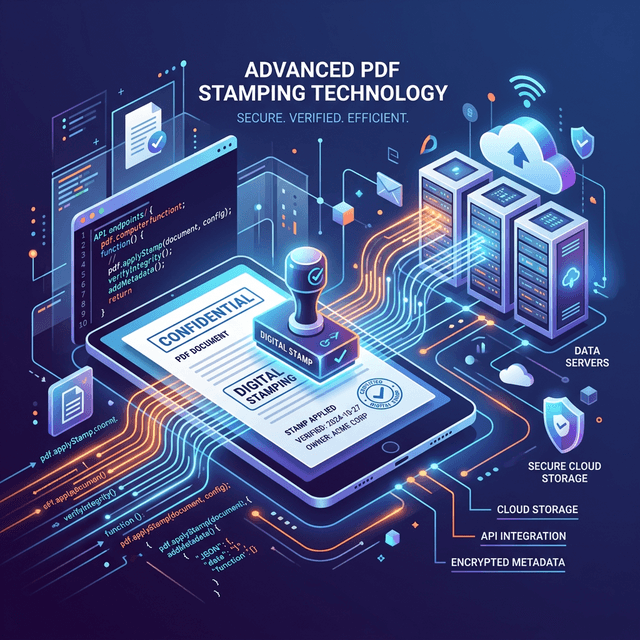
PDF Stamping Technology
How client-side PDF stamping actually works under the hood.
Bates number your PDF now
Open Bates Stamping Software, drop in your PDFs, set your prefix and starting number, and stamp the whole production locally in your browser. Your first full production is free after Google sign-in.
Start Bates numbering