Online Bates Numbering Tools: Security, Privacy, and Performance Comparison
Online Bates numbering tools offer convenience, but not all are created equal. This comprehensive guide compares security models, privacy protections, and performance to help you choose the safest, fastest solution for confidential legal documents.
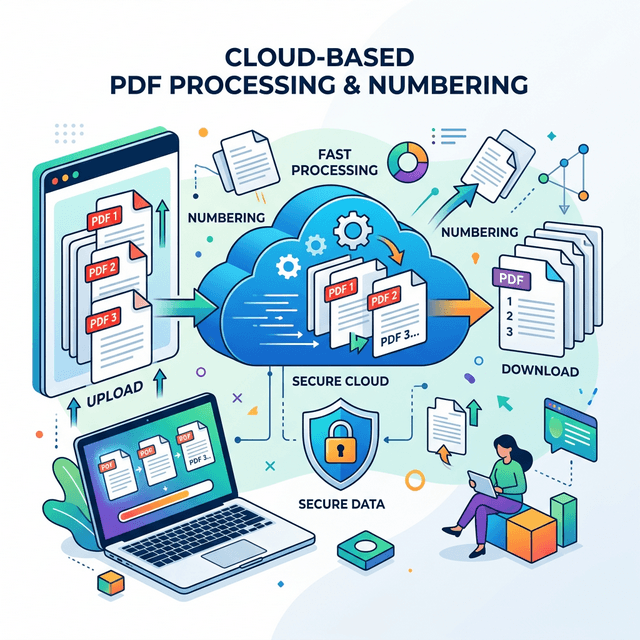
Table of Contents
Comparing tools? See our best Bates numbering software picks for 2026, ranked by use case.
Security Models: Client-Side vs Server-Side Processing
The most critical distinction between online Bates numbering tools is where document processing occurs. This fundamental architectural difference determines security, privacy, and compliance capabilities.
Client-Side Processing
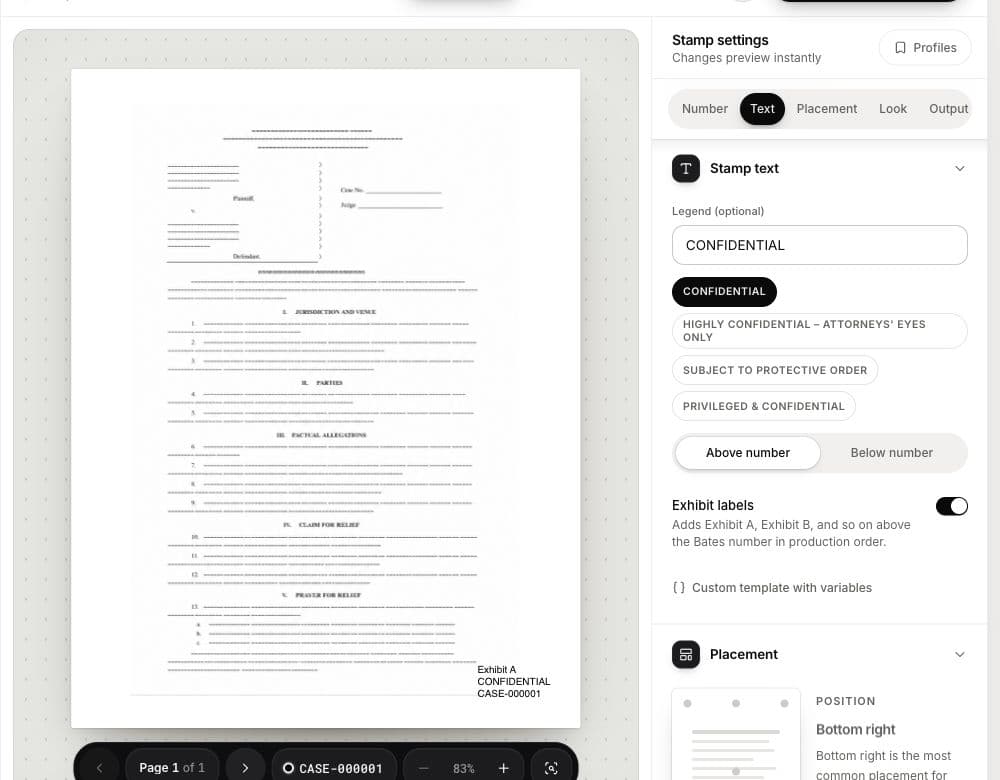
Documents are processed entirely in your web browser using WebAssembly or JavaScript. Files never leave your computer.
Example: Bates Stamping Software
Uses WebAssembly for browser-based processing
Server-Side Processing
Documents are uploaded to remote servers for processing, then downloaded back to you.
Example: Most online PDF tools
Upload → Process → Download model
⚠️ Critical Security Consideration
For legal documents containing attorney-client privileged information, trade secrets, or personal health information (PHI), server-side processing creates unacceptable risks. Client-side processing is the only truly secure option for confidential materials.
Privacy and Data Protection
Client-Side Tools: Maximum Privacy
Local Bates numbering reduces exposure to a processing server by keeping source documents on the device. The benefits depend on the implementation and the security of the surrounding workflow:
- No uploads: Documents never leave your device
- No storage: No copies retained on any server
- No tracking: Document contents never seen by provider
- No logs: No record of what files you processed
- Low data exposure: Licensing data is separate from document processing
Server-Side Tools: Privacy Risks
Server-side tools create multiple privacy vulnerabilities:
- Upload exposure: Documents transmitted over internet
- Server storage: Files temporarily (or permanently) stored
- Access logs: Records of uploaded files maintained
- Third-party access: Employees may access documents
- Subpoena risk: Stored documents subject to legal process
- Breach vulnerability: Server hacks expose all stored files
🔒 Privacy Best Practice
For privileged documents or health information, assess the entire workflow. Local processing avoids uploading source files, while device security, disclosure authority, and any required provider agreements still need review.
Compliance Considerations
For health information, review HHS Security Rule guidance and HHS business associate guidance. Processing location alone is not a compliance certification.
| Requirement | Client-Side | Server-Side |
|---|---|---|
| Attorney-Client Privilege | Review access and disclosure | Review provider and disclosure |
| HIPAA Compliance | Assess safeguards | Assess safeguards and BAA obligations |
| GDPR Data Protection | Local processing still occurs | Assess processing and transfers |
| Trade Secret Protection | Review protection measures | Review protection measures |
Performance and Speed Comparison
Processing Speed
Modern client-side tools using WebAssembly match or exceed server-side performance:
Benchmark: 1,000-Page Document
*Times include upload/download for server-side tools
Factors Affecting Performance
Client-Side Tools
- Computer speed: Faster CPU = faster processing
- Browser: Chrome/Edge typically fastest
- RAM: More memory helps with large files
- No network dependency: Speed consistent regardless of internet
Server-Side Tools
- Upload speed: Major bottleneck for large files
- Download speed: Another delay after processing
- Server load: Slower during peak usage
- Geographic distance: Farther servers = more latency
Feature Comparison
| Feature | Bates Stamping Software (Client-Side) | Typical Server-Side |
|---|---|---|
| Custom Bates formats | ✓ | ✓ |
| Batch processing | ✓ | ✓ |
| File renaming | ✓ | Limited |
| Label generation | ✓ | Rare |
| No file size limits | ✓ | ✗ |
| Unlimited documents | ✓ | ✗ |
| Works offline | ✓ | ✗ |
| Free preview run sign-in | ✓ | ✗ |
Cost Analysis
Client-Side Tools
One-time purchase
- • No subscription fees
- • No per-page charges
- • No file size limits
- • Unlimited usage
Server-Side Tools
Subscription or pay-per-use
- • Monthly subscription
- • Per-page fees
- • File size limits
- • Usage caps
Recommendations by Use Case
✓ Use Client-Side Tools For:
- • Attorney-client privileged documents
- • Medical records (HIPAA)
- • Trade secrets and confidential business information
- • Personal identifying information (PII)
- • Any sensitive or confidential materials
- • High-volume batch processing
- • Cost-effective alternative to $300/year subscriptions
Review Before Using Server-Side Tools:
- • Documents are already public
- • You have explicit client consent for upload
- • Provider has proper security certifications
- • BAA in place when the provider is a business associate
- • You understand and accept the risks
Frequently Asked Questions
How can I verify a tool uses client-side processing?
Open your browser's developer tools (F12) and check the Network tab while processing a document. Client-side tools show no file uploads. You can also disconnect your internet after the page loads - client-side tools continue working.
Are client-side tools as powerful as desktop software?
Browser tools can support substantial document workflows, but speed depends on the device, file sizes, page count, and implementation. Try a representative batch before selecting a tool.
What happens to my documents on server-side tools?
Server-side tools upload your documents to their servers for processing. While most claim to delete files after processing, you have no way to verify this. Your documents pass through their systems and may be logged, analyzed, or retained.
Can I use online Bates numbering tools for HIPAA-protected documents?
Local processing alone does not establish HIPAA compliance. Review the full workflow and its safeguards. A BAA may be required when a provider handles PHI on behalf of a regulated entity; assess that relationship rather than relying on the processing location.
Conclusion
When choosing an online Bates numbering tool, security and privacy should be your top priorities. Client-side processing tools like Bates Stamping Software offer a strong combination: local document processing, strong privacy, fast performance, and one free preview run.
For professional legal work, review how the tool handles documents and whether it meets the production and security requirements. Local processing removes the source-file upload step; it does not replace other safeguards.
Try the Most Secure Online Bates Numbering Tool
Bates Stamping Software processes document contents locally. Device security and delivery controls still matter. Your documents never leave your computer. Start with one free preview run, then $199 one-time purchase.
Try Bates Stamping Software Now