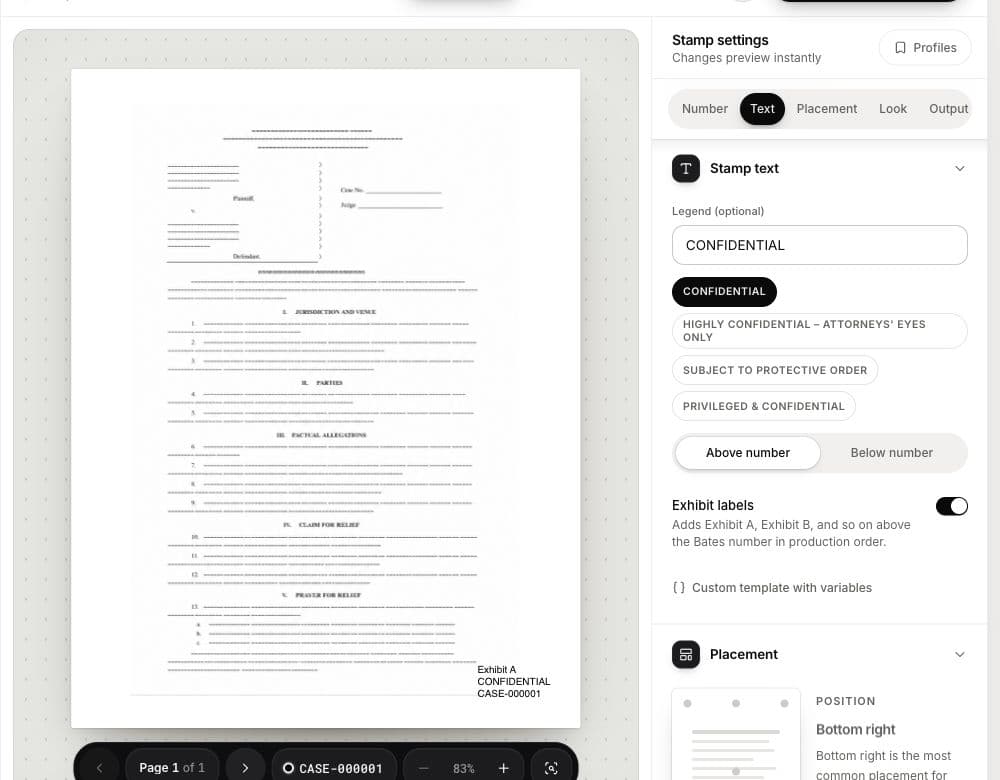
Integrating Bates Numbering into Your Document Workflow: API and Automation
Manual Bates numbering slows down legal teams handling hundreds of documents daily. Learn how to automate Bates numbering workflows, integrate with document management systems, and build efficient pipelines that save hours of repetitive work.

Why Automate Bates Numbering?
Legal teams processing discovery documents, contract reviews, or regulatory filings often handle thousands of pages per case. Manually applying Bates numbers to each document is time-consuming and error-prone. Automation eliminates these bottlenecks and ensures consistency across every document.
Key Benefits of Automation
- Time savings: Process hundreds of documents in minutes instead of hours
- Consistency: Uniform formatting and sequential numbering across all documents
- Error reduction: Eliminate human mistakes in number sequences
- Audit trail: Automatic logging of processing activities
- Scalability: Handle increasing document volumes without additional staff
Automation Approaches
There are several approaches to automating Bates numbering, each suited to different workflow requirements and technical capabilities.
1. Batch Processing
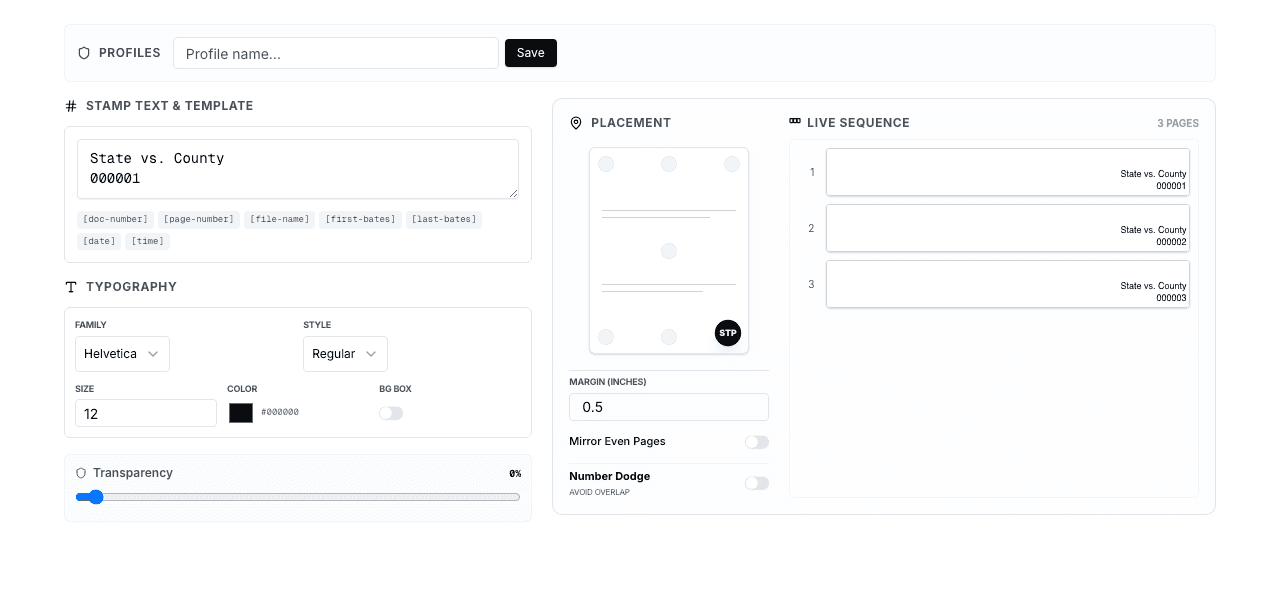
The simplest form of automation is batch processing — selecting multiple files and applying Bates numbers to all of them in sequence. Bates Stamping Software supports batch processing directly in the browser, allowing you to drag and drop entire folders of PDFs for sequential numbering.
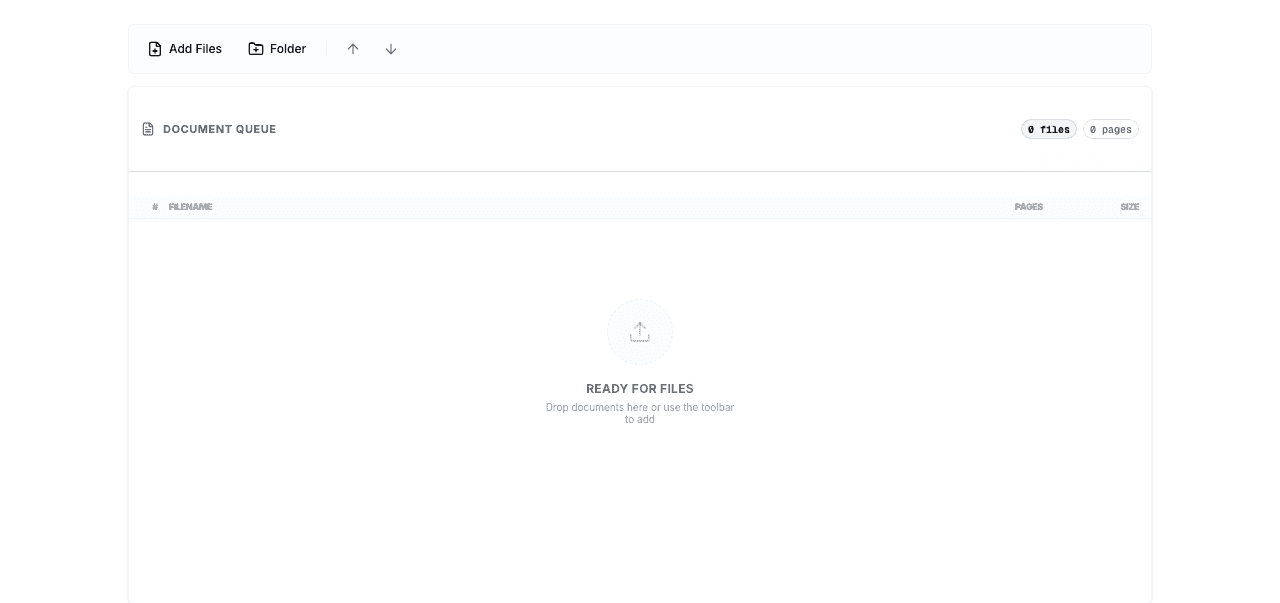
Batch Processing Best Practices
- Organize files in the correct order before processing
- Use consistent naming conventions for output files
- Verify the starting number before each batch
- Keep a log of Bates number ranges per document
2. Watched Folder Automation
For teams with recurring document flows, watched folder automation monitors a designated folder for new files and automatically applies Bates numbers when documents appear. This hands-free approach works well for intake processes where documents arrive continuously.
Implementation Tip
Set up separate input and output folders to prevent re-processing. Use file system watchers or scheduled scripts to detect new documents and trigger Bates numbering automatically.
3. API-Driven Integration
API integration offers the most flexibility for custom workflows. By calling a Bates numbering service programmatically, you can embed numbering into existing document management pipelines, case management systems, or custom applications.
Building an Automated Workflow
A typical automated Bates numbering workflow involves several stages: document intake, pre-processing, Bates number application, and output management. Here's how to design each stage.
Stage 1: Document Intake
Set up a structured intake process to collect documents before numbering. This might involve:
- Email attachment extraction for documents received via email
- Cloud storage sync from services like SharePoint, Google Drive, or Dropbox
- Document management system exports from platforms like iManage or NetDocuments
- Scanner integration for physical documents being digitized
Stage 2: Pre-Processing
Before applying Bates numbers, documents often need preparation:
File Validation
Verify file formats, check for corruption, and ensure PDFs are valid before processing.
Page Count Analysis
Calculate total pages across all documents to plan Bates number ranges and detect anomalies.
Sort Order
Establish the correct document order — alphabetical, chronological, or by document type.
Deduplication
Identify and remove duplicate documents to avoid wasting Bates number ranges.
Stage 3: Bates Number Application
The core processing step applies Bates numbers to each document. Key configuration options include:
- Number format: Define prefix, digit count, and suffix (e.g., CASE001-000001-DOC)
- Placement: Choose header or footer position, alignment, and margins
- Font settings: Select typeface, size, and color for stamp text
- Continuation: Ensure sequential numbering continues across multiple documents
Stage 4: Output Management
After numbering, manage outputs effectively:
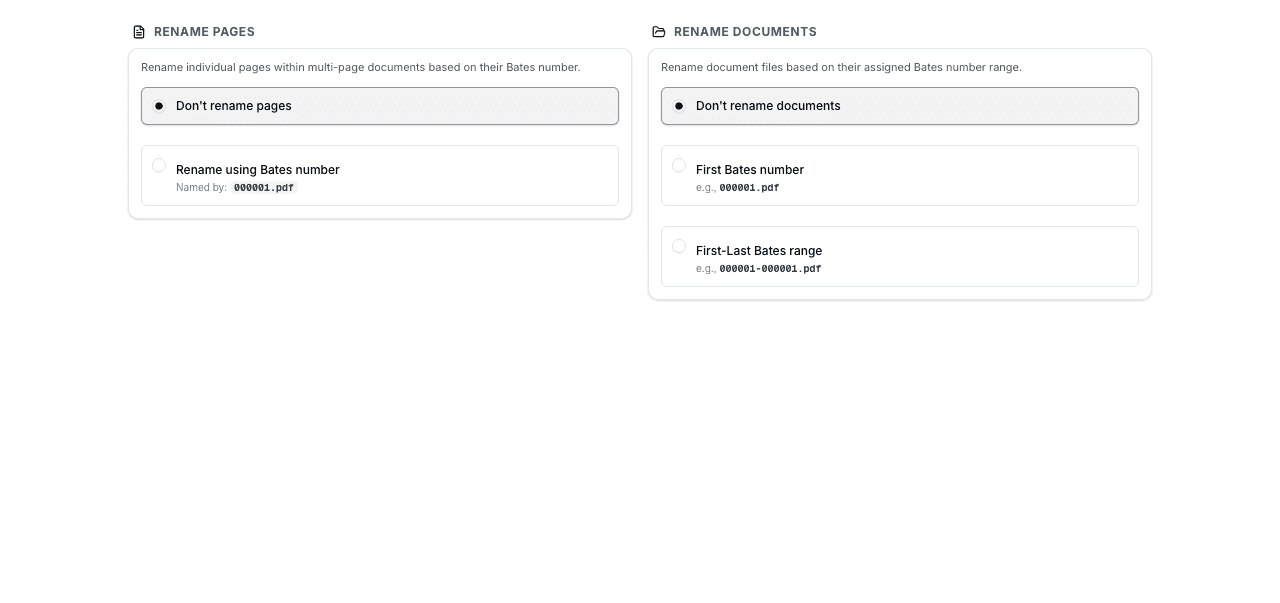
- Generate a Bates number index mapping document names to number ranges
- Rename output files to include Bates number ranges in filenames
- Route processed documents to the appropriate storage location
- Send notifications to team members when processing completes
Document Management System Integration
Integrating Bates numbering with your existing document management system (DMS) creates a seamless workflow. Here are common integration patterns:
iManage Integration
Export documents from iManage workspaces, apply Bates numbers, and re-import with updated metadata. Use iManage's API to automate the export/import cycle and update custom fields with Bates number ranges.
NetDocuments Integration
NetDocuments' REST API allows you to download documents, process them with Bates numbers, and upload the stamped versions. Tag documents with Bates metadata for easy searching and retrieval.
SharePoint Integration
Use Power Automate or custom workflows to trigger Bates numbering when documents are uploaded to specific SharePoint libraries. Store numbered documents in a separate library with metadata columns for Bates ranges.
Workflow Optimization Tips
Use Templates for Recurring Cases
Create workflow templates for common case types. Store Bates number format settings, folder structures, and processing rules so you can spin up new cases quickly without reconfiguration.
Implement Version Control
Track which version of each document received Bates numbers. If documents need re-processing (e.g., after a production correction), you can identify exactly which files need updating.
Build Error Handling
Design workflows to handle failures gracefully. If a document can't be processed (corrupt file, password-protected PDF), quarantine it for manual review without stopping the entire batch.
Maintain an Audit Log
Log every processing action with timestamps, user information, and results. This audit trail is essential for legal compliance and helps troubleshoot issues when they arise.
Getting Started with Bates Stamping Software
Bates Stamping Software provides client-side Bates numbering that processes your documents entirely in the browser. This means your sensitive legal documents never leave your computer — an essential security feature for legal workflows.
Start with batch processing for immediate time savings, then explore more advanced automation as your needs grow. Bates Stamping Software's browser-based approach makes it easy to integrate into any workflow without installing software or managing servers.
Streamline Your Document Workflow
Start automating your Bates numbering process today with Bates Stamping Software's fast, secure, browser-based tools. one free preview run — then $199 one-time purchase.
Try Bates Stamping Software NowWatch the walkthrough
All video tutorialsBates Numbering Best Practices: Continue a Supplemental Production
A supplemental production should use the intended next identifier when it continues the same sequence. If the previous batch ended at DOC dash zero zero zero zero one three, the next batch starts at fourteen. Here is how to verify that in BatesFast.