Bates Label Program: Create Bates Labels for Paper Documents
A Bates label program helps legal teams print sequential labels for paper documents while keeping the numbering aligned with digital PDF productions. Bates Stamping Software supports both workflows: printable Bates labels and secure digital Bates stamping.
What does a Bates label program do?
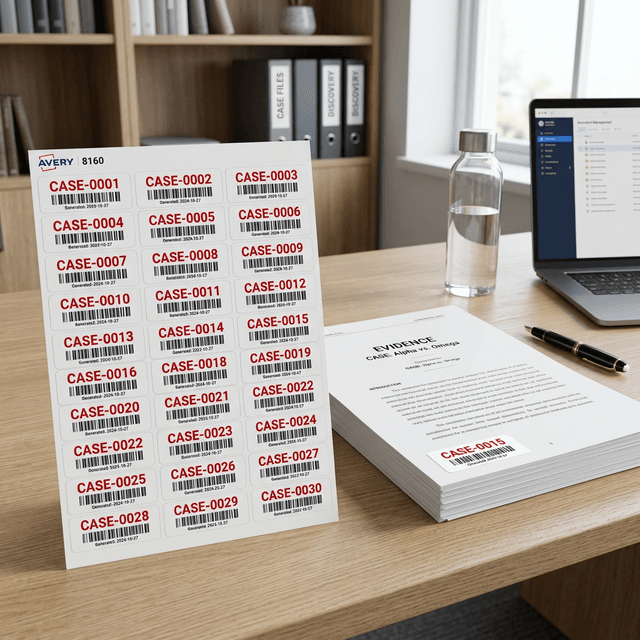
Bates labeling software creates a controlled sequence of labels that can be printed and applied to physical documents. Each label usually contains a prefix and padded number, such as ACME-000001. The goal is the same as digital Bates numbering: every document page or item gets a stable identifier.
Physical labels are useful for exhibits, paper productions, archives, and original records that cannot be safely scanned or digitally altered. For regular PDFs, digital Bates stamping is faster and less error-prone.
Bates Stamping Software includes Bates label generation
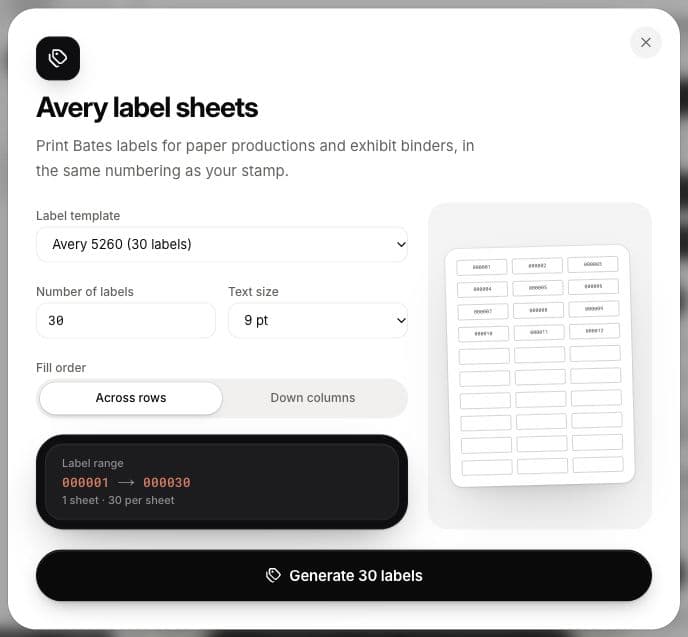
In Bates Stamping Software, open the Run step, select Label Sheet, choose an Avery layout, set quantity or use your document queue page count, and generate a printable PDF label sheet.
Avery layouts
Use common sheet layouts for professional label printing.
Printable PDF
Generate label sheets you can test, save, and print.
Digital too
Stamp PDFs and image files in the same app.
How to create Bates labels
- Choose the starting Bates number and format
- Pick the label sheet layout, such as Avery 5160 or 5260
- Set the quantity or use the page count from the document queue
- Generate a PDF label sheet
- Print, review alignment, and apply labels in order
Always print a test sheet on plain paper first and hold it against the label stock to verify alignment. Once alignment is correct, print the final sheet and apply labels in strict order.
Bates labels vs digital Bates numbering
| Workflow | Best for | Risk to watch |
|---|---|---|
| Bates labels | Paper originals, exhibits, archives, physical folders | Misapplied labels or printer alignment mistakes |
| Digital Bates stamps | PDFs, scans, mixed image files, discovery productions | Uploading confidential files to cloud-only tools |
Bates label program checklist
- Supports padded numbers and custom prefixes
- Includes common Avery label templates
- Can generate labels by rows or columns
- Produces a PDF you can archive with the matter
- Keeps labels aligned with digital Bates ranges
- Can also digitally stamp PDFs when paper labels are not needed
Related Bates labeling guides
Bates Number Labels
The full physical document labeling guide with templates and printing tips.
Custom Bates Number Formats
Plan prefixes, suffixes, padding, and naming conventions before printing labels.
Renaming Files with Bates Numbers
Keep digital files and physical labels aligned by Bates range.
Bates Numbering for Litigation
Use labels and digital stamps inside a discovery production workflow.
Create Bates labels or stamp PDFs
Use Bates Stamping Software to generate printable label sheets, digitally stamp PDFs, and keep every production numbered consistently.
Generate Bates labels